

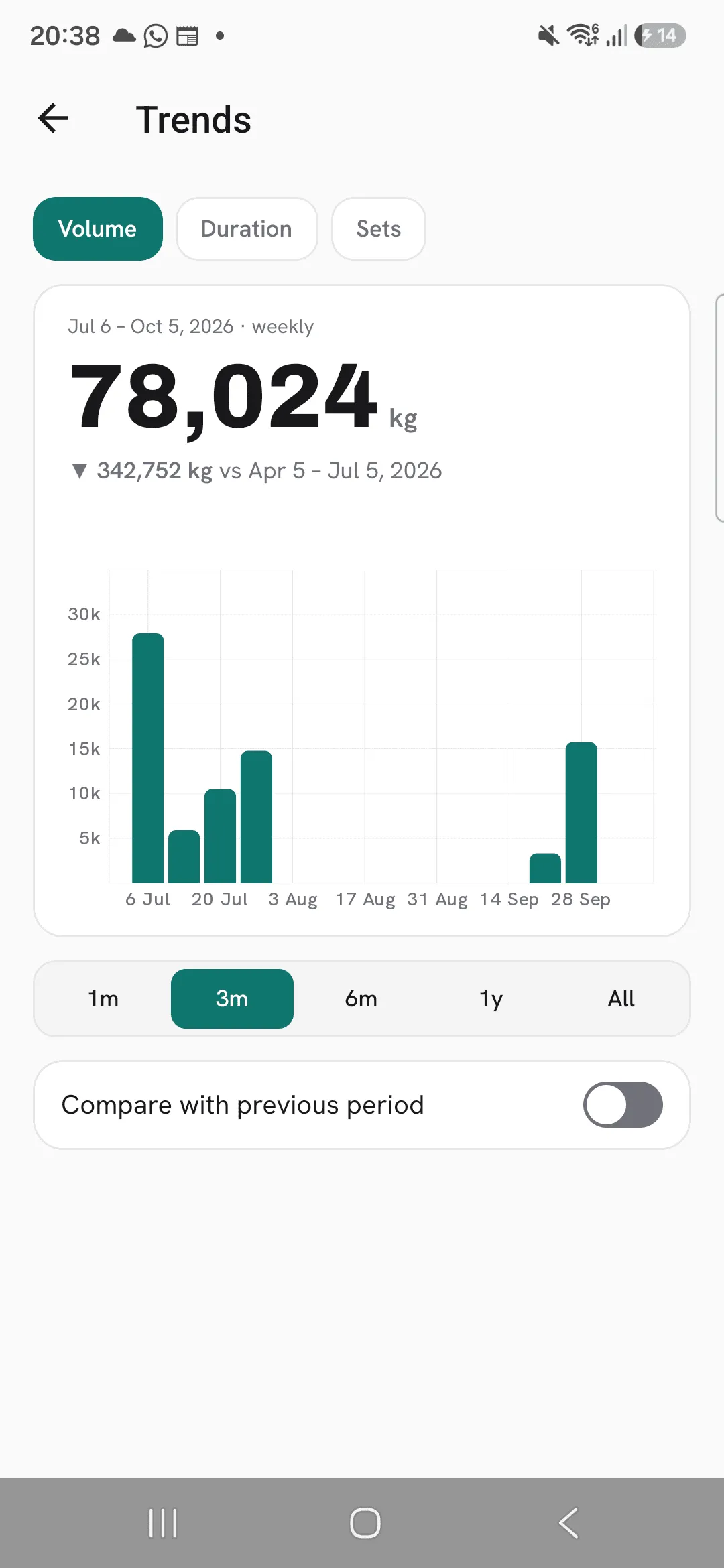
Trends charts how much you train overall: your total volume, your time spent training and your number of sets, over time.
A single exercise can stall while your training as a whole keeps growing, or the other way round. Trends shows the whole picture, so you can see a busy block, a deload or a few missed weeks for what they are.
Your last three months
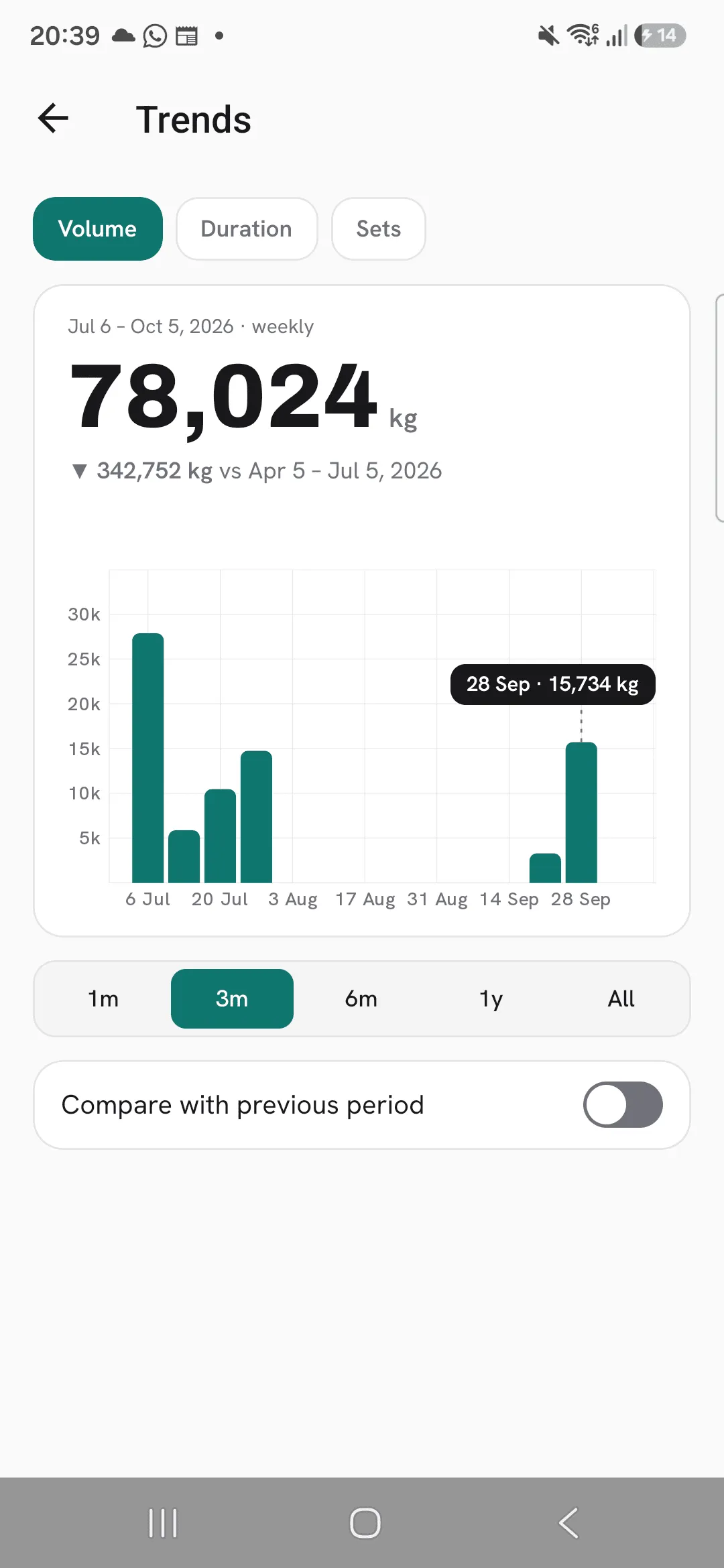
Open Progress, then Statistics. The cards at the top show Volume, Duration and Sets for the last three months, week by week. Swipe between them. Each card shows the total and how much it went up or down compared with the three months before.
Tap a card to open Trends on that metric. Tapping the hours trained or weight lifted on the All time card under Progress opens it too.
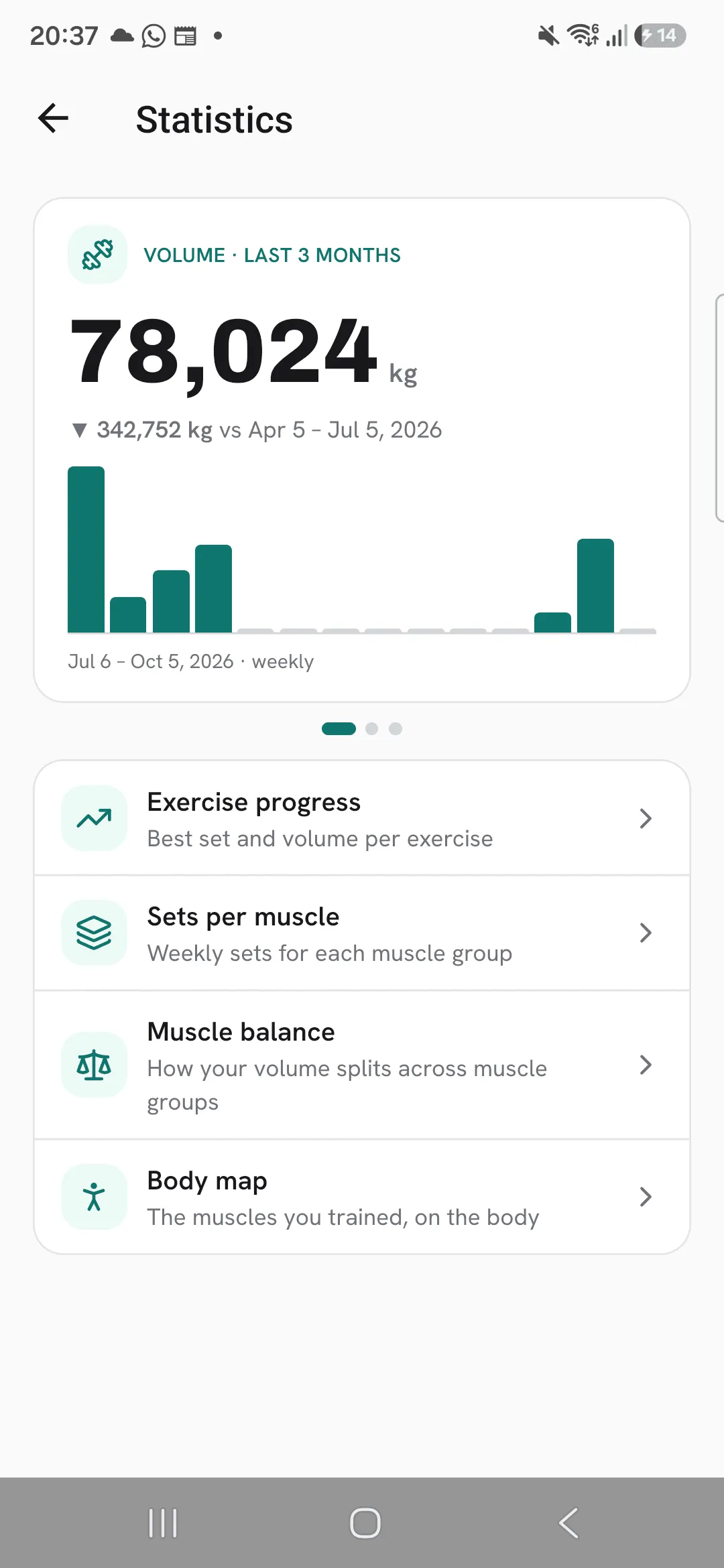
Pick a metric and a range
- Volume: weight times reps, added up over every ticked set.
- Duration: the time your workouts took, in hours.
- Sets: every ticked set, of every kind of exercise.
Choose 1 month, 3 months, 6 months, 1 year or all time. Up to 6 months, each bar is a week. For a year or all time, each bar is a month.
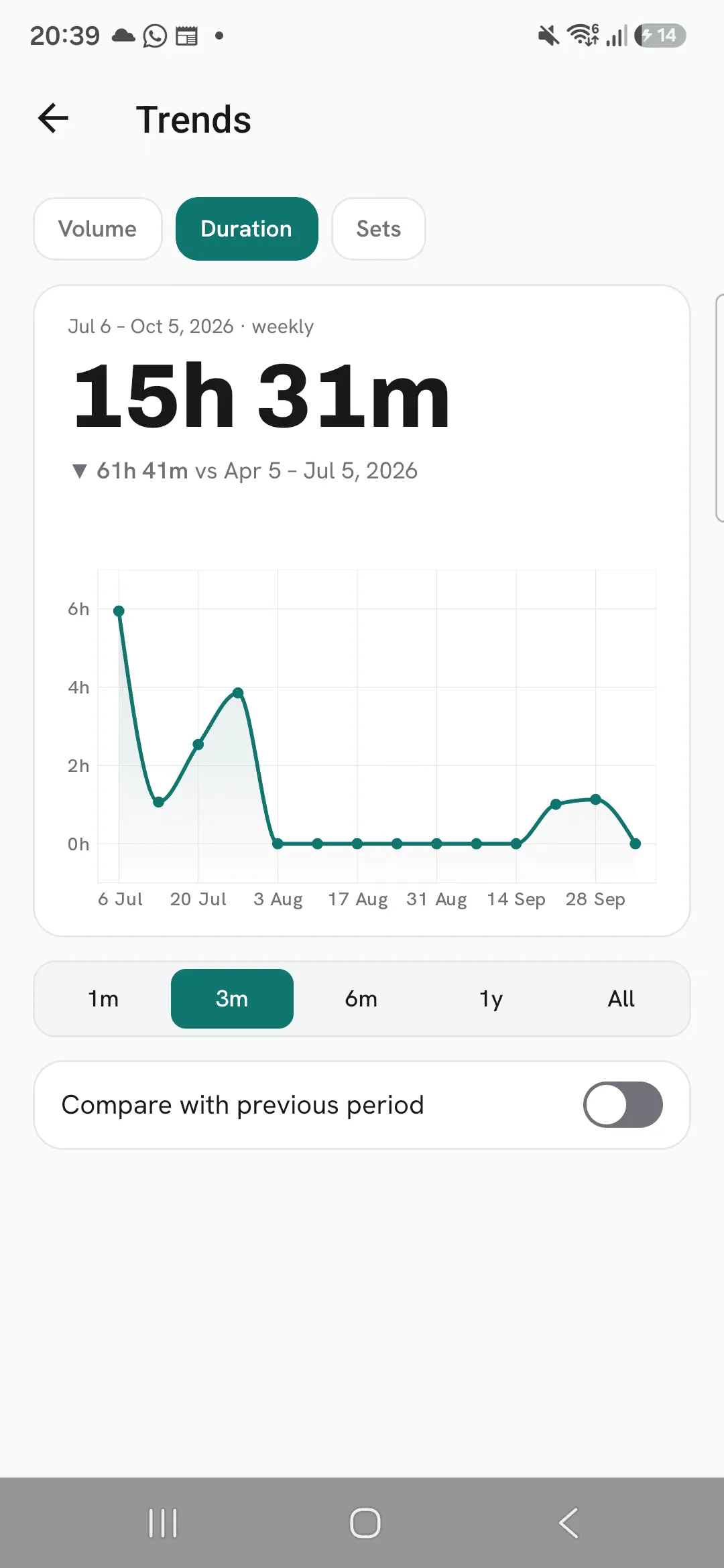
Compare with the previous period
With the switch off, the headline shows your total and how much it went up or down compared with the period before.
Turn on Compare with previous period to draw the period before behind the current one, for the same length of time. The headline then shows both totals, each with its dates: this period in colour, the period before in grey. All time has no period before it, so it has no compare switch.
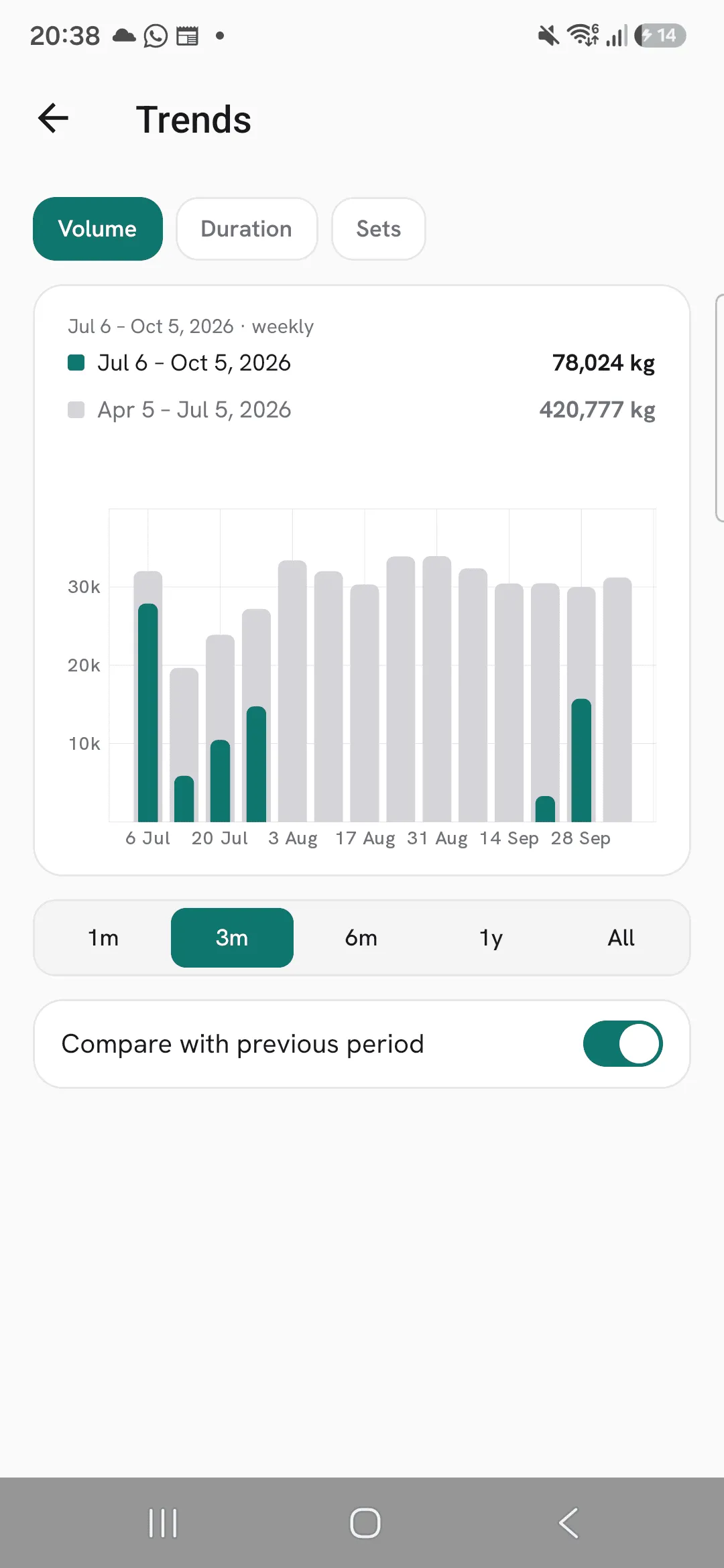
Read a week or month
Tap a bar, or drag along the chart, to see the value for that week or month. The value stays shown after you lift your finger, until you tap elsewhere or scroll.
Tips
- Turn on Compare with previous period to see this block of training against the one before it.
- Pick All to see your whole training history month by month.
Frequently asked questions
How is volume worked out?
Weight times reps, added up over every ticked set that has both. A bodyweight set with no added weight adds nothing to volume, but it does count as a set.
Do warm-up sets count?
Not unless you turn on Count warm-up sets in stats under Profile, then Workout defaults. Workout time is never affected.
Do imported workouts count?
Yes, the same as the workouts you log in Overlood.