

Overlood counts your rest down between sets and buzzes when it’s time for the next one.
Set your default rest
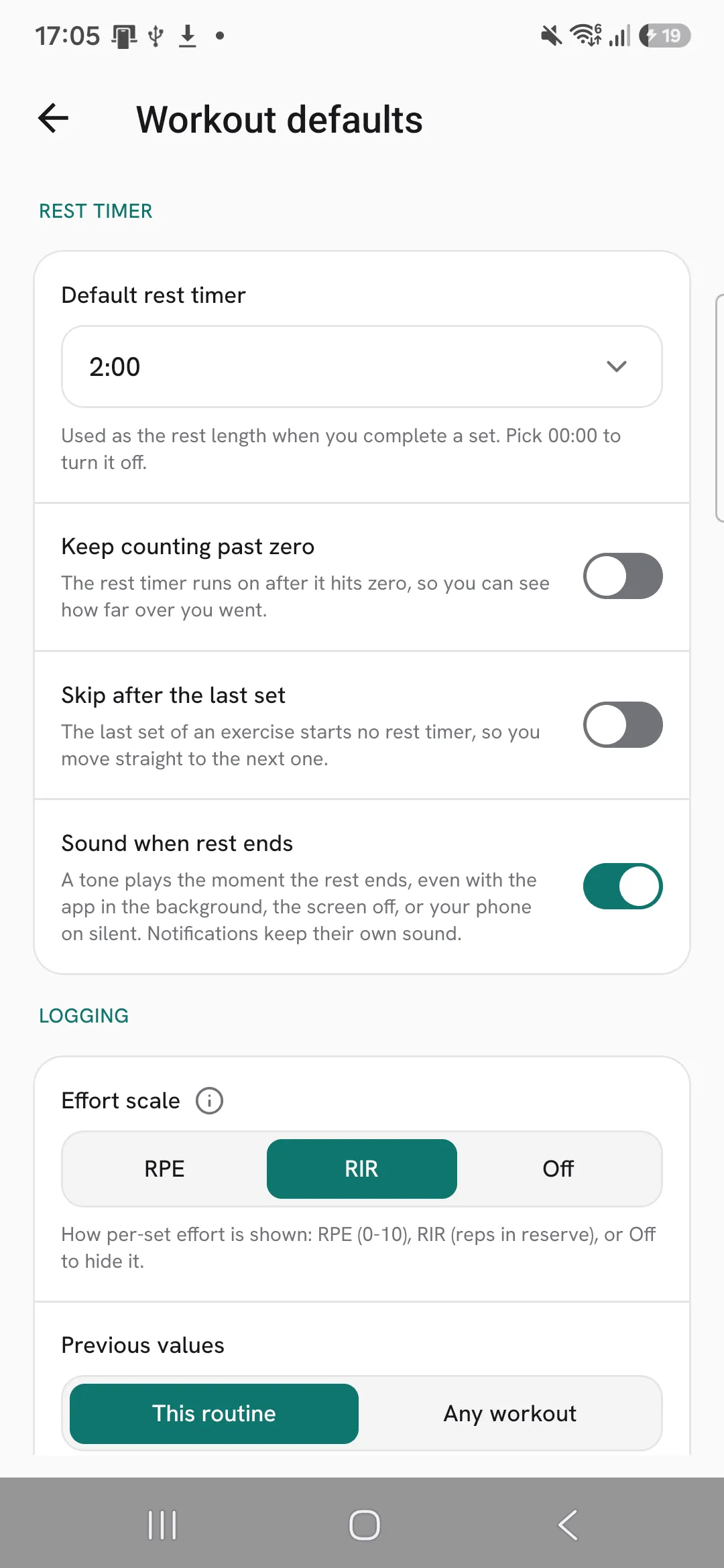
- Open Profile, then Workout defaults.
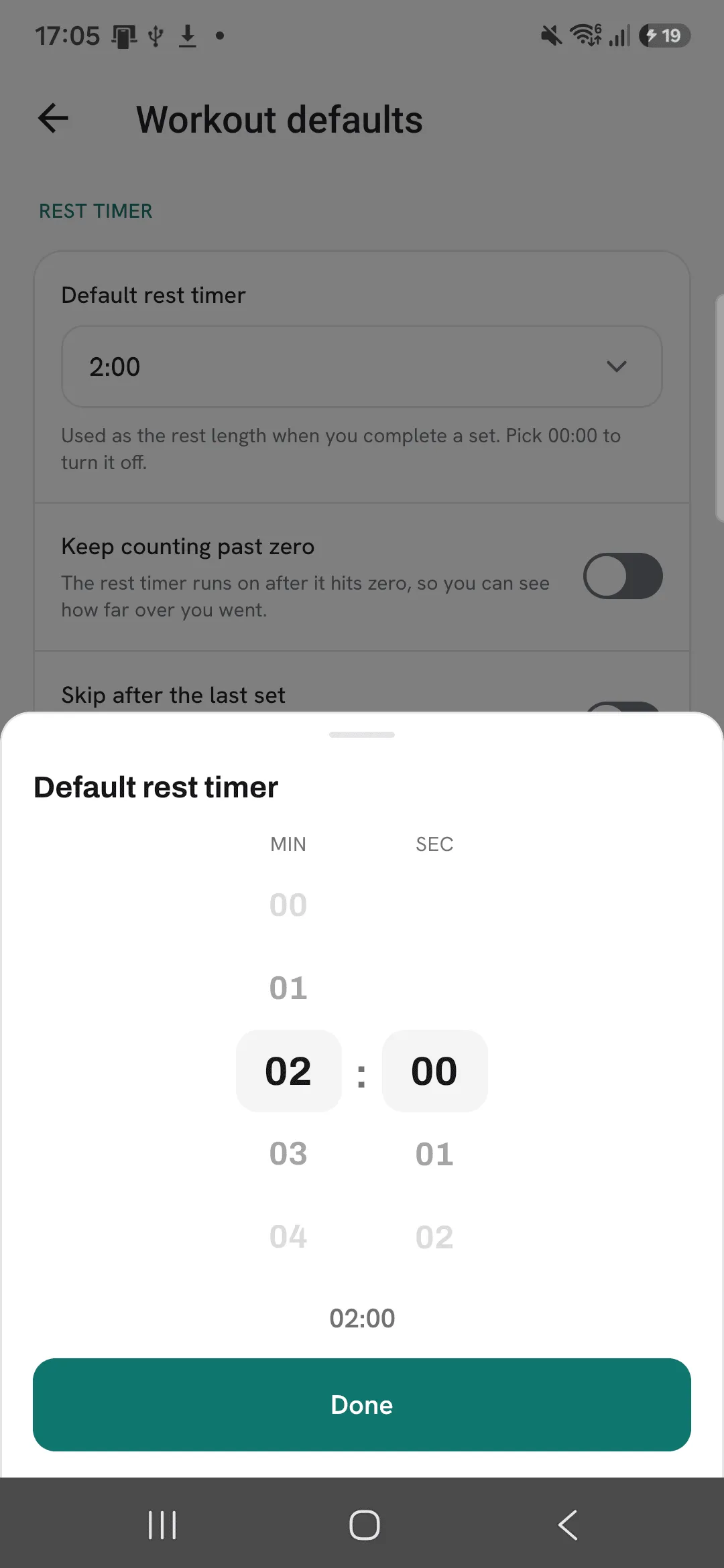
- Tap Default rest timer and pick a length. Pick 00:00 and sets without a rest of their own start no countdown.
Give an exercise its own rest
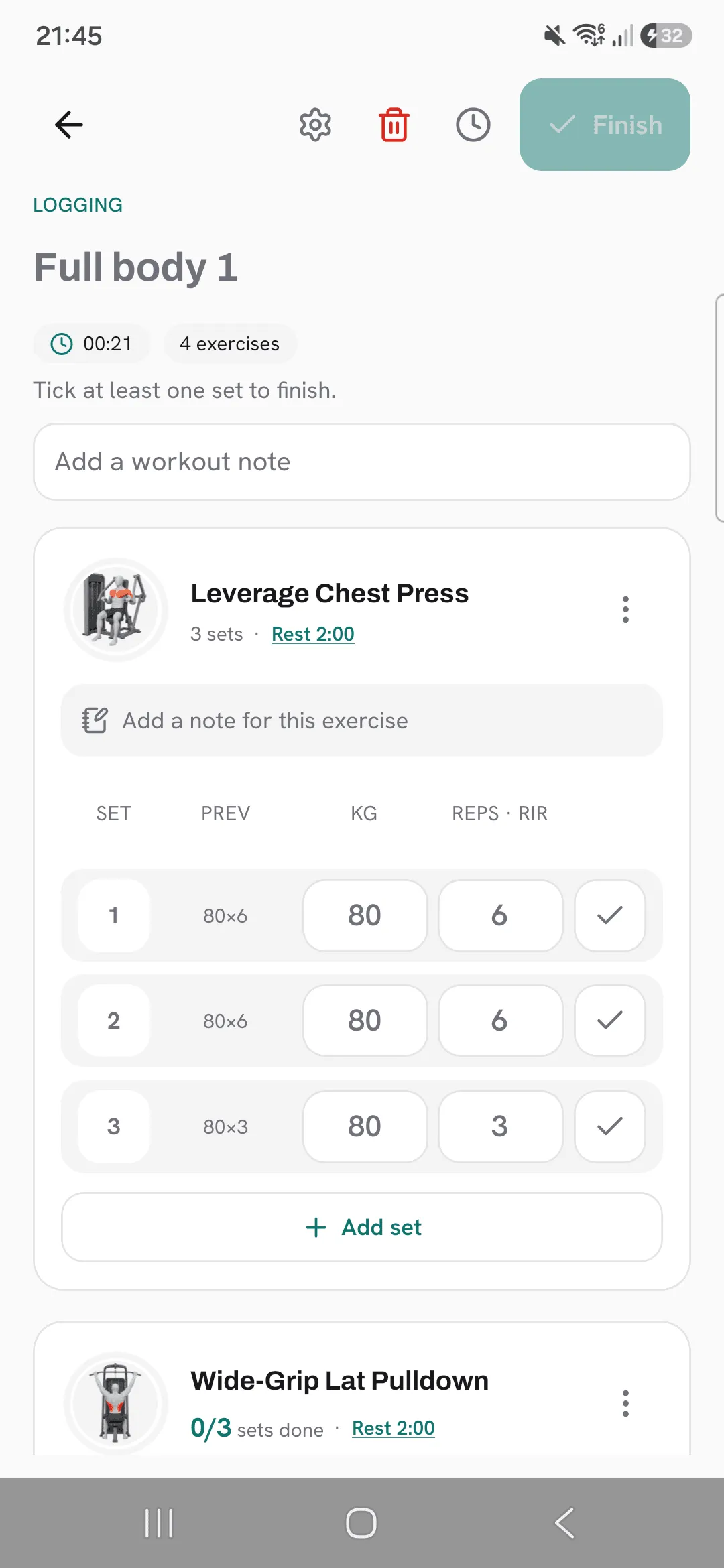
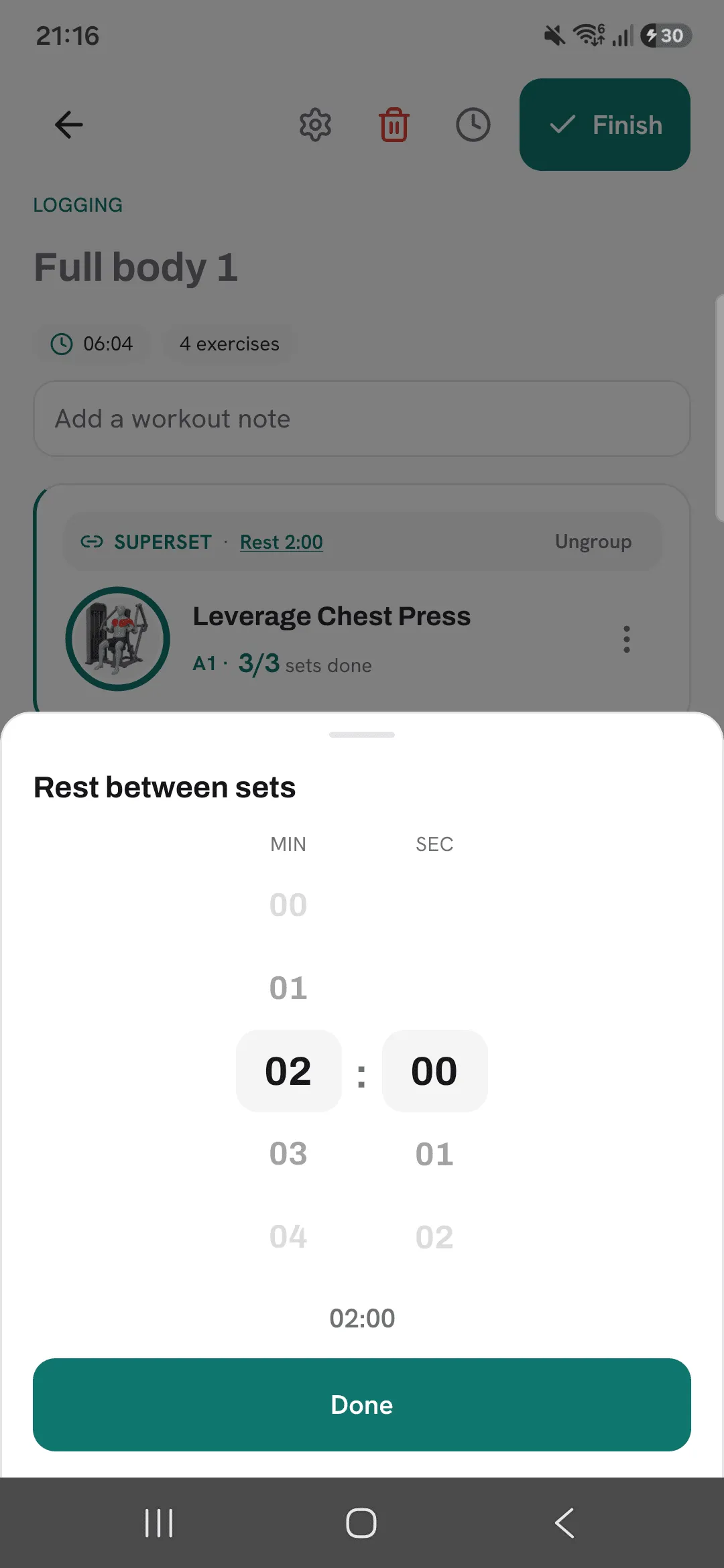
Tap Rest on an exercise card during a workout to change the rest for that exercise. In a routine you can set a rest per exercise too, and every workout you start from it rests that long.
Start a rest
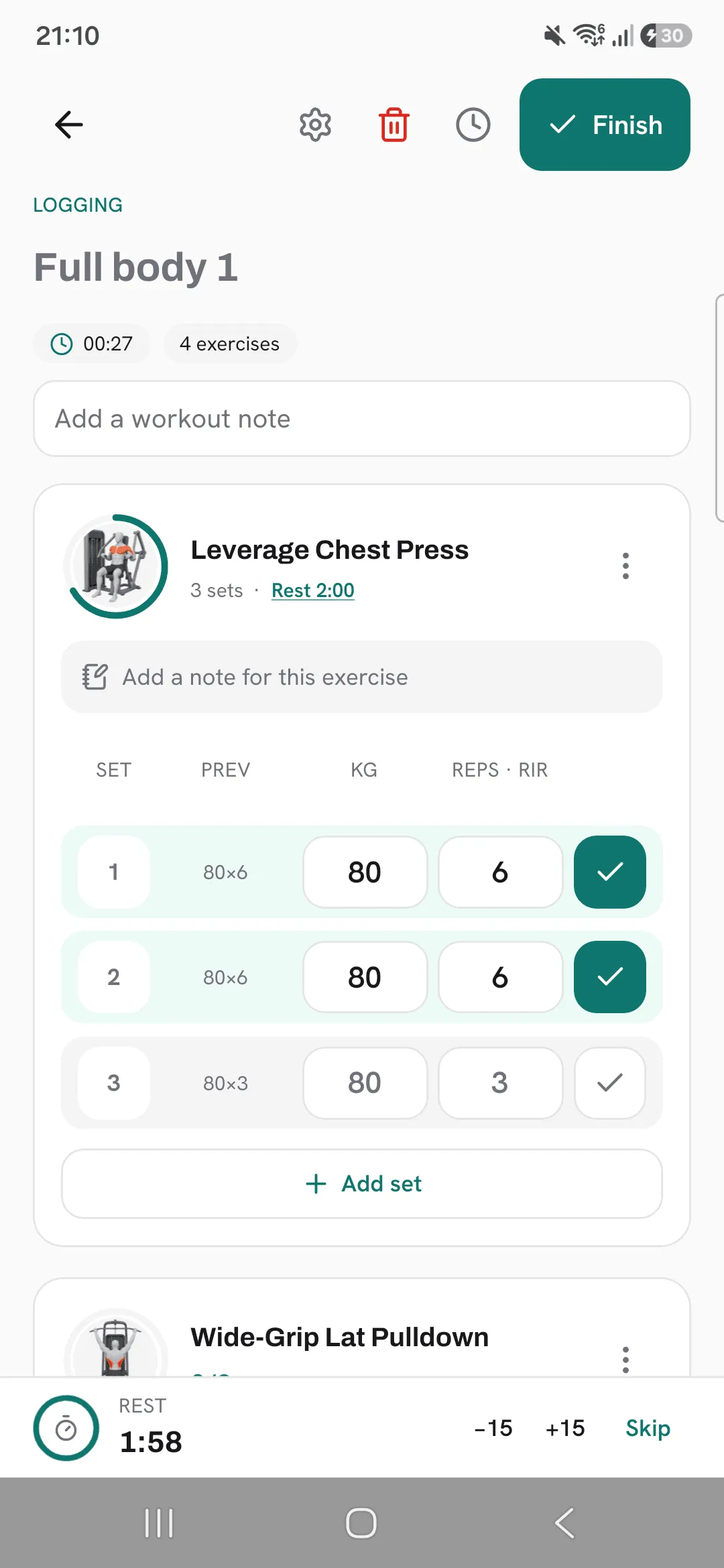
Tick a set and the countdown starts at the bottom of your workout.
While you rest
- Add or take off 15 seconds with the buttons beside the countdown.
- Tap Skip to end the rest early.
- When the rest runs out, your phone buzzes. If you’re out of the app, a notification tells you rest is up, as long as notifications are allowed for Overlood.
Choose how it behaves
Under Profile, then Workout defaults:
- Keep counting past zero lets the timer run on, so you see how far over you went.
- Skip after the last set starts no rest after the last set of an exercise, so you move straight to the next one.
- Sound when rest ends plays a tone at zero.
Supersets rest once per round
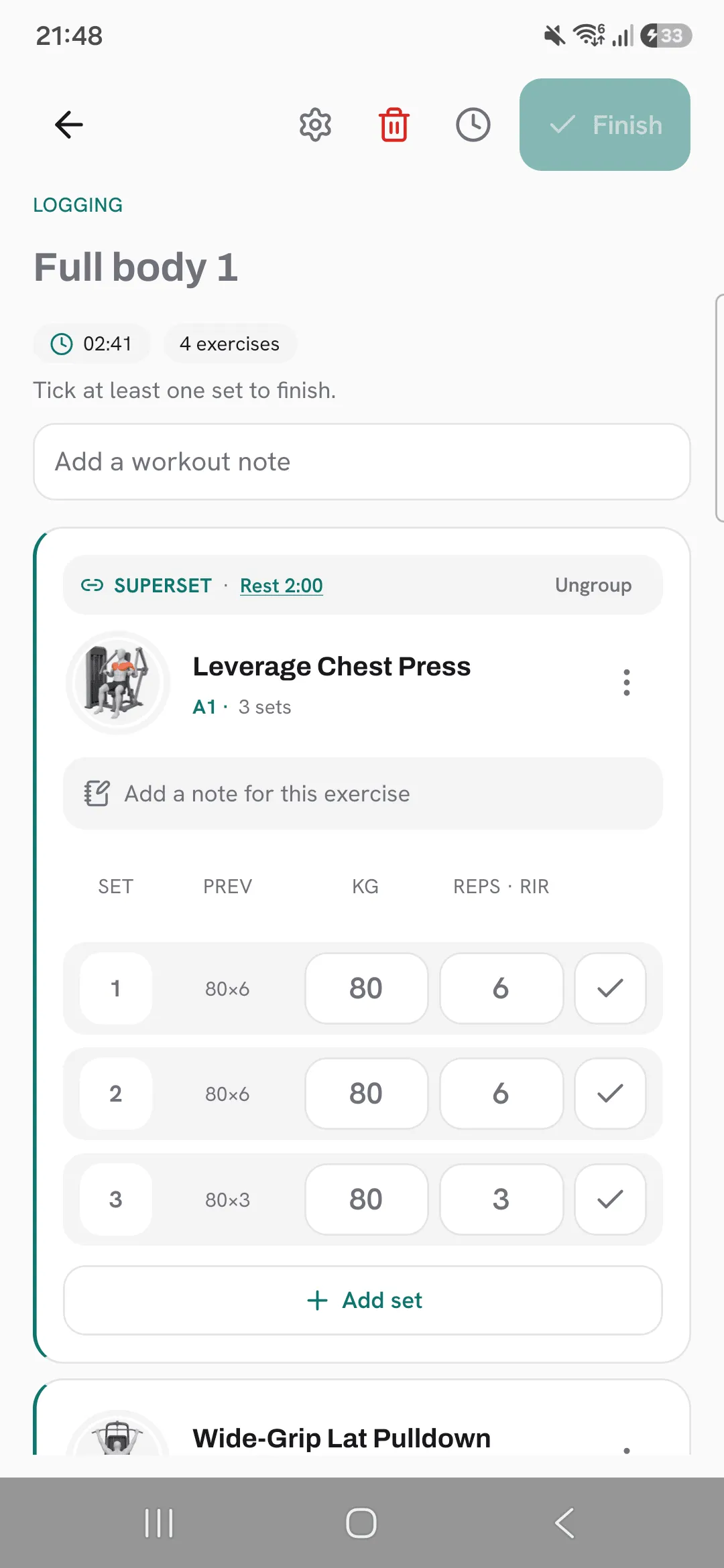
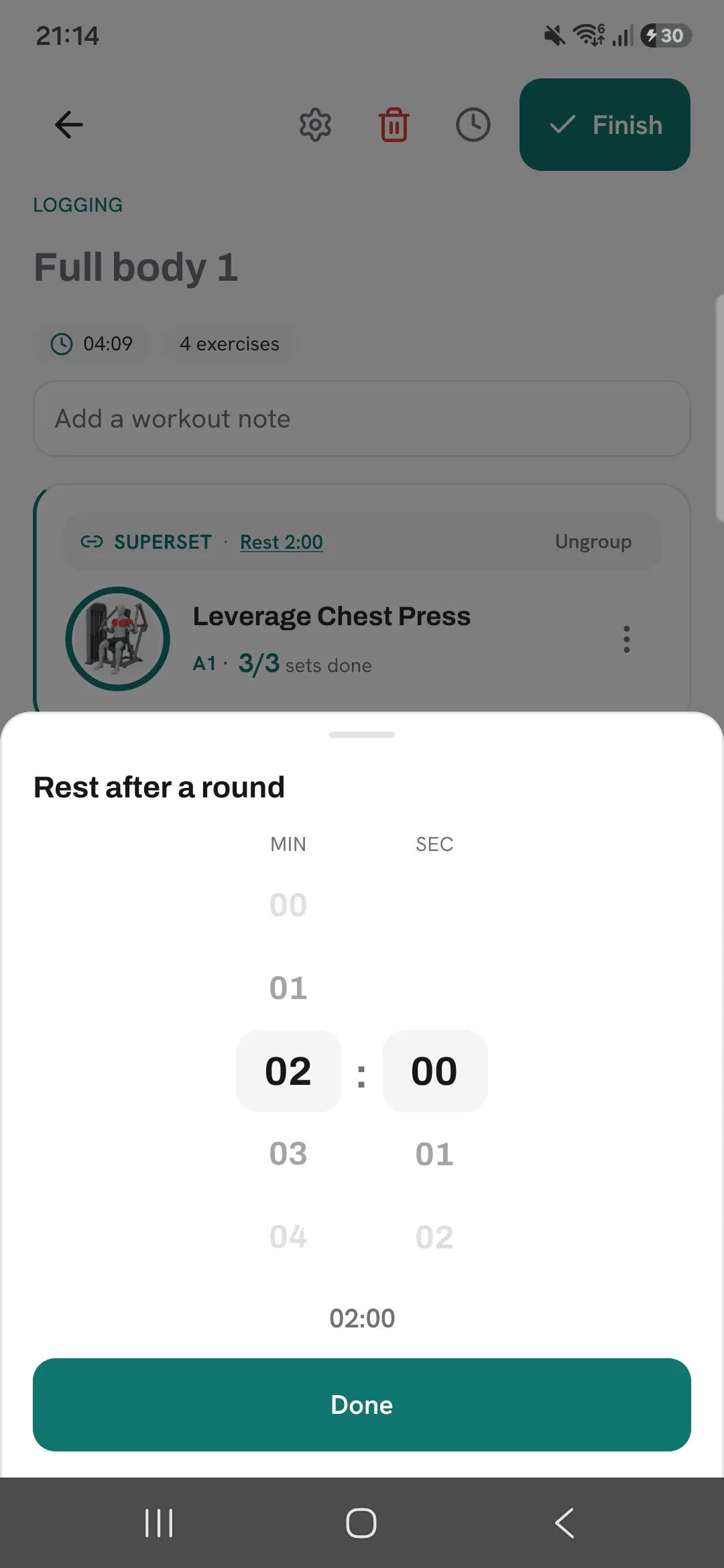
Exercises in a superset don’t rest between each other. One rest starts after the last exercise of the round, and you set its length on the superset.
Timer and stopwatch
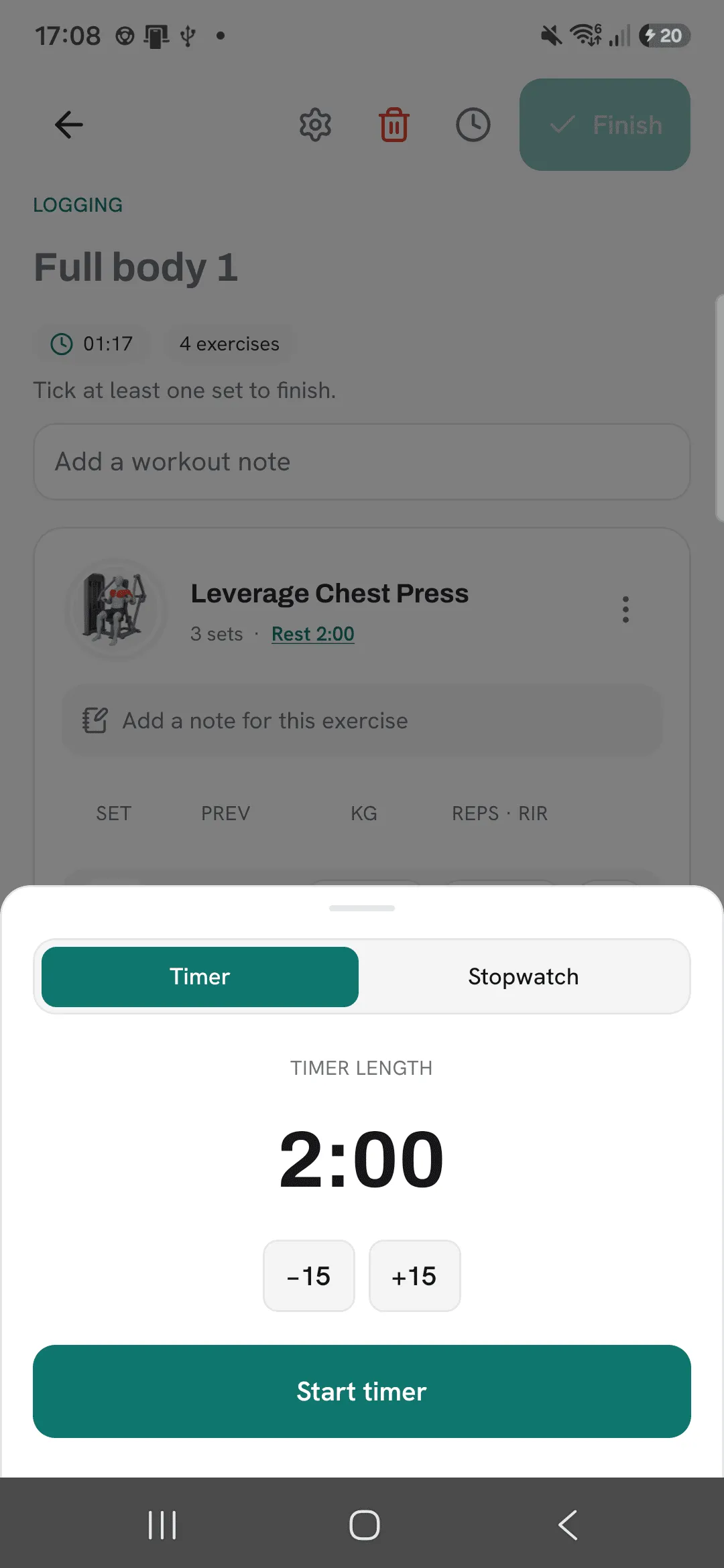
Tap the clock at the top of a workout for a timer you start yourself, or a stopwatch.
Tips
- Give your heavy lifts a longer rest in the routine, and every workout you start from it rests that long.
- Allow notifications for Overlood, so you know rest is up when you’re in another app.
- If your rests tend to run long, turn on Keep counting past zero and you’ll see by how much.
Frequently asked questions
Can I change the rest while it runs?
Yes. Add or take off 15 seconds with the buttons beside the countdown, or tap Skip to end it.
Will I know rest is up if I leave the app?
Your phone buzzes, and a notification tells you rest is up, as long as notifications are allowed for Overlood.
How do I turn the rest timer off?
Open Profile, then Workout defaults, and set Default rest timer to 00:00. An exercise or superset with its own rest still counts down, so tap its Rest and pick 00:00 to turn that one off too.
How does rest work in a superset?
One rest starts after the last exercise of each round. You set its length on the superset.