
Overlood fills in each set with what you lifted last time. Repeat it and logging the set is one tick.
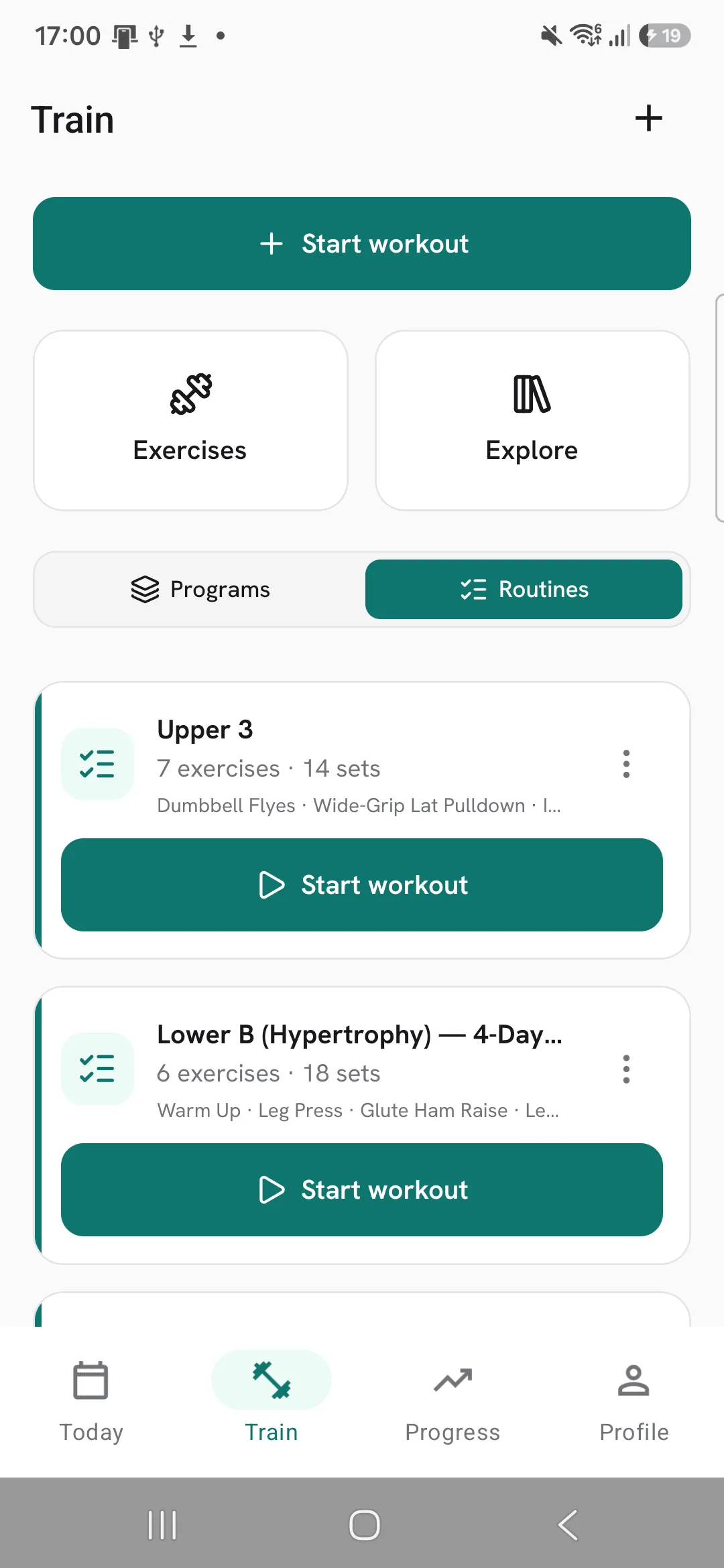
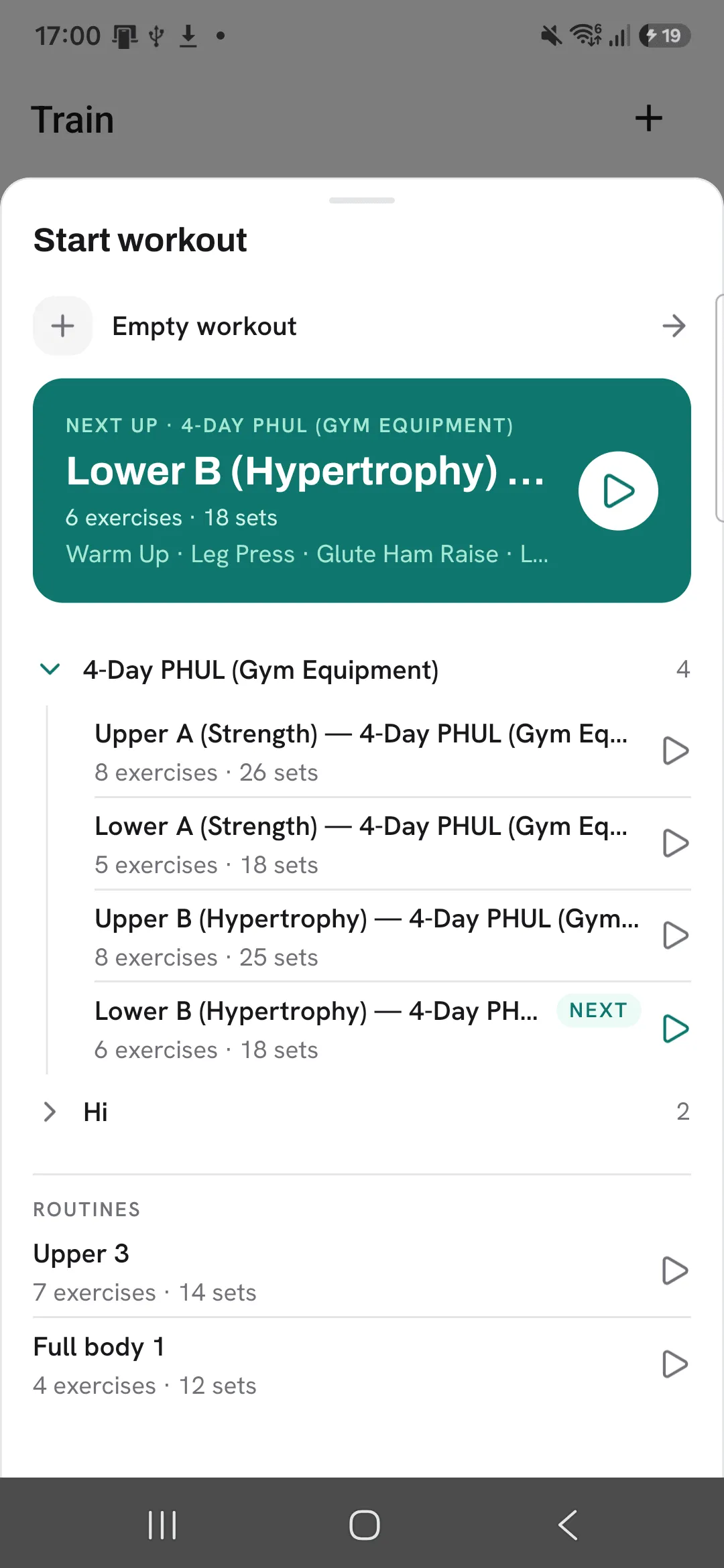
Start a workout
- Tap Start workout on the Today or Train tab.
- Pick Empty workout, or pick one of your routines to start with its exercises and sets in place.
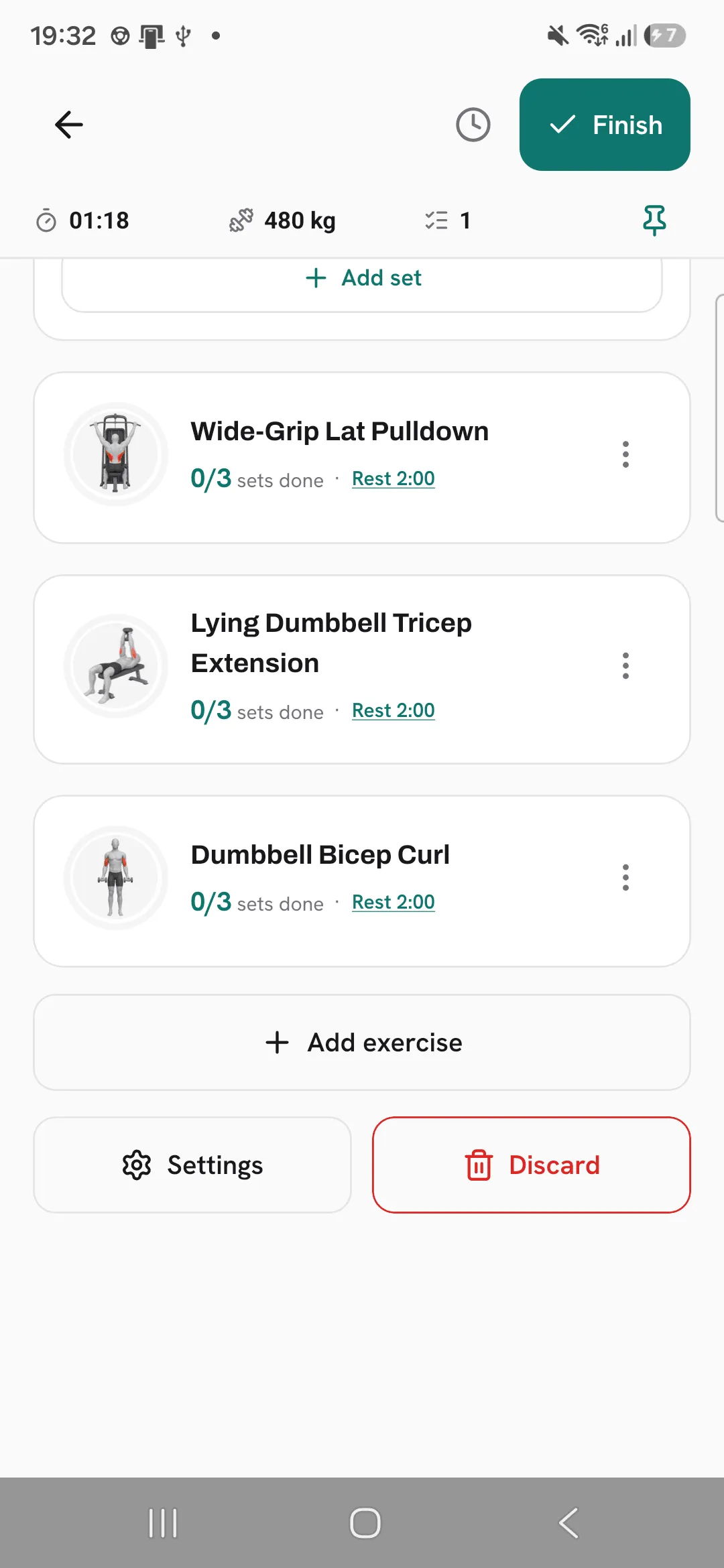
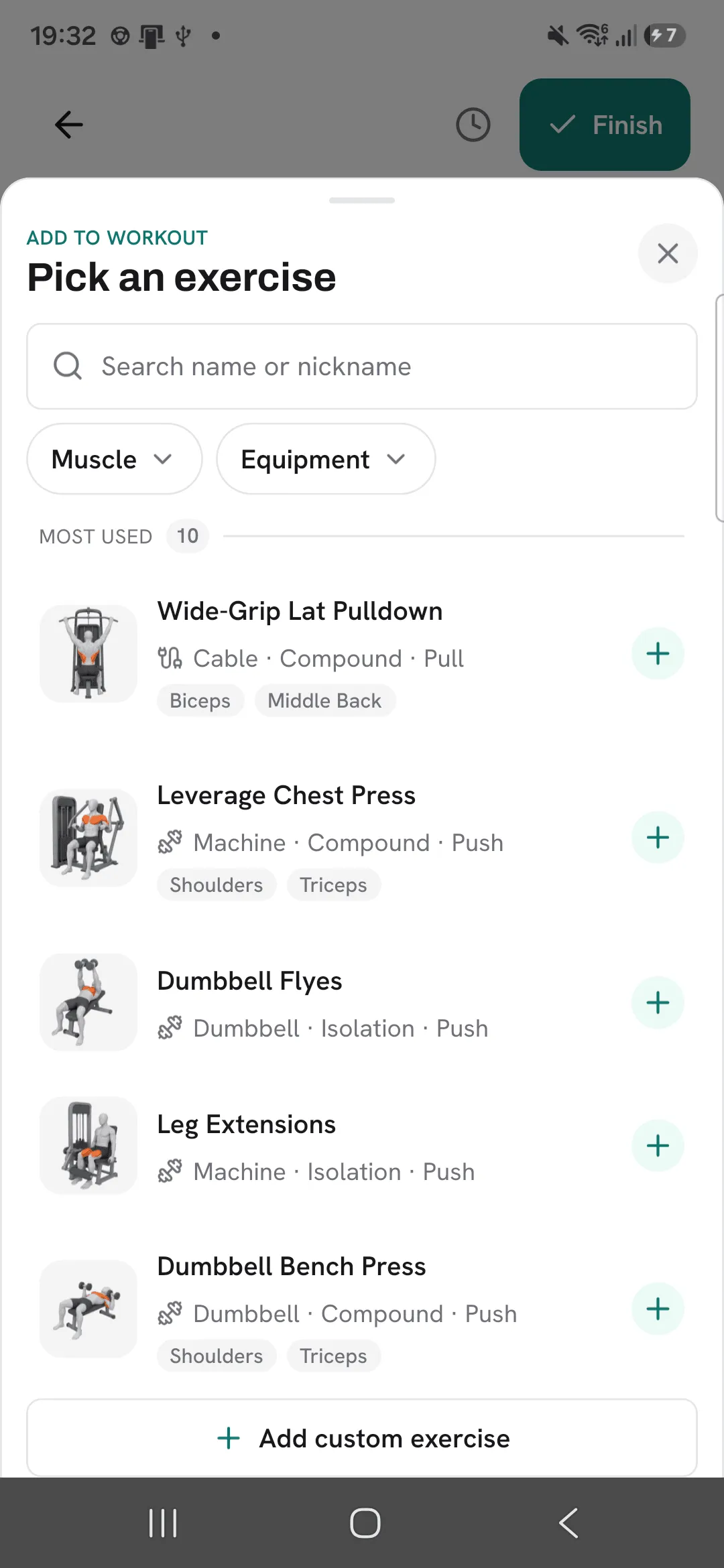
- Tap Add exercise to add more. Tick as many as you need, then tap the button at the bottom to add them all at once. Search by name, filter by muscle or equipment, or add your own exercise if it’s missing.
A workout started from a routine takes the routine’s name. An empty workout is named after the day you train it. You can rename it when you finish.
Log your sets
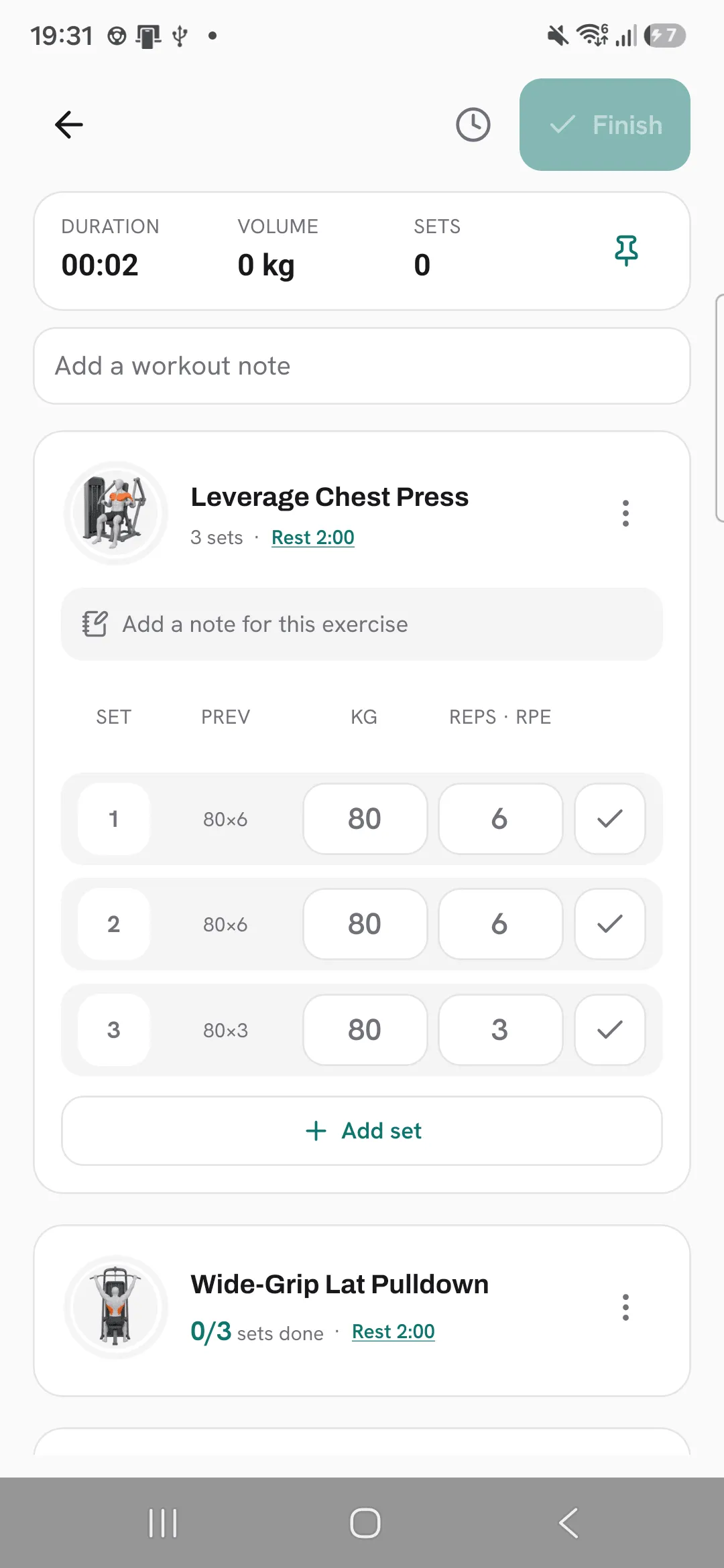
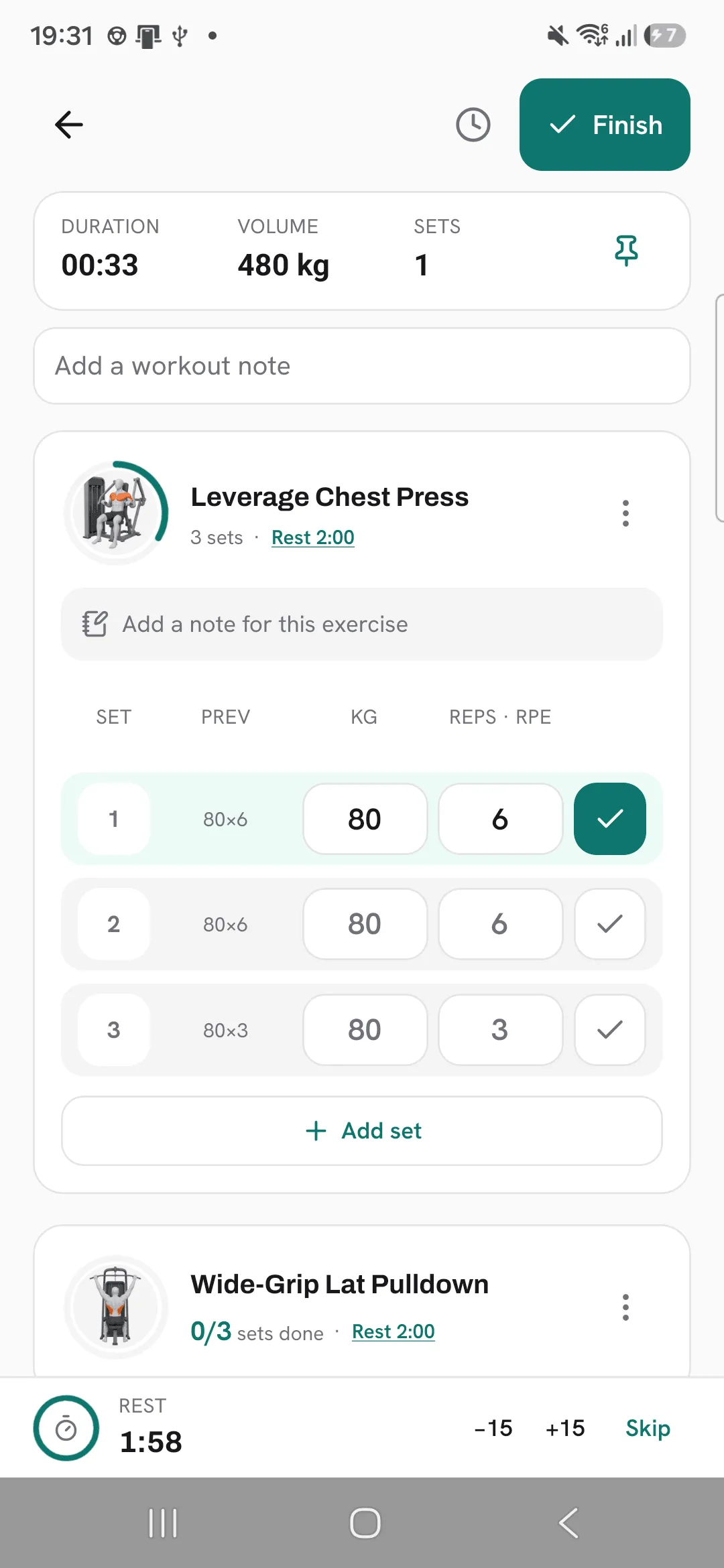
Each set shows what you did last time in the Prev column, and those numbers are filled in as a suggestion.
- To log the set as shown, tick it.
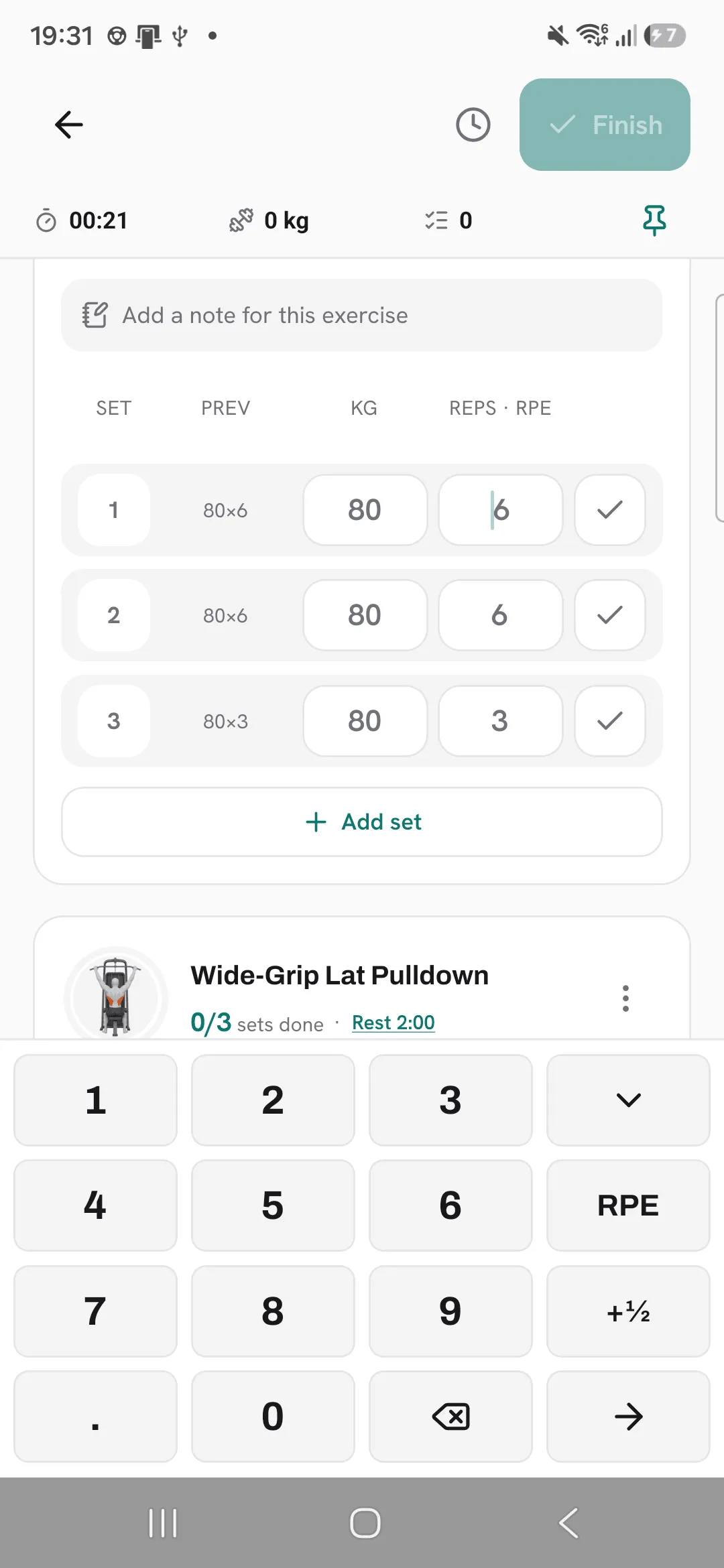
- To log something else, tap the weight or reps and type your numbers on the keypad. The arrow key moves you on to the next value.
- Tap Add set for another set.
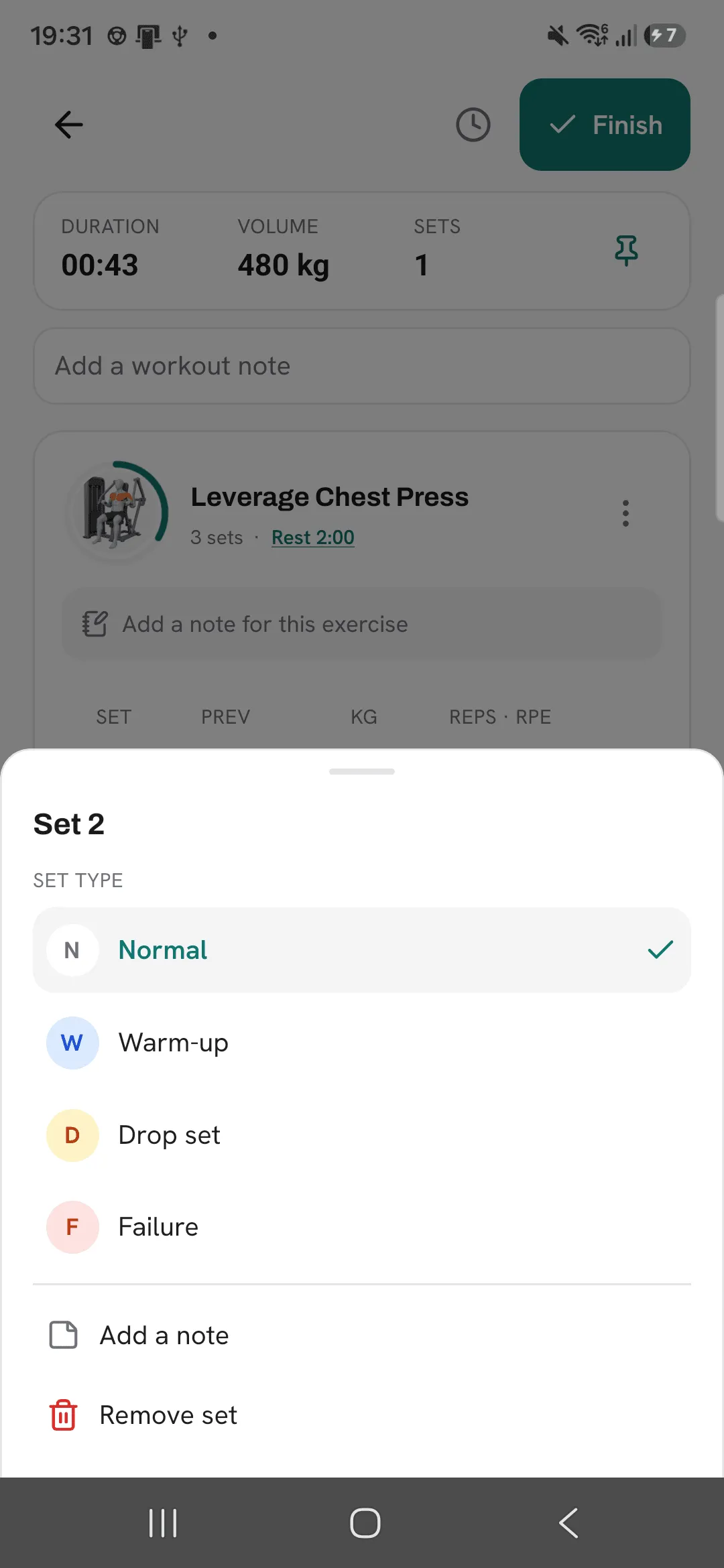
Tap a set’s number to change its type (normal, warm-up, drop set or failure), add a note to that set, or remove it. Each exercise and the workout itself take a note too.
Exercises logged by time or distance show those columns instead of weight and reps.
Look back at an exercise
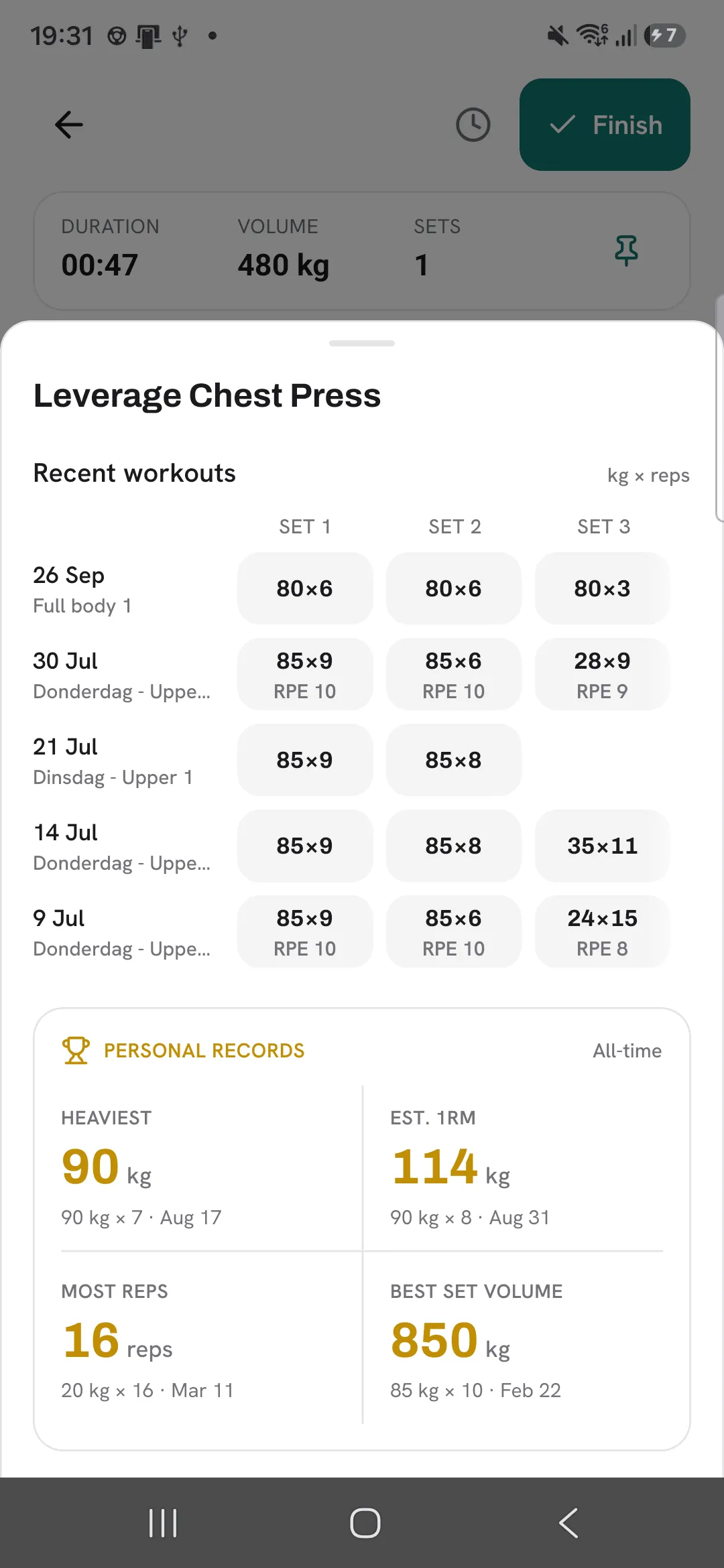
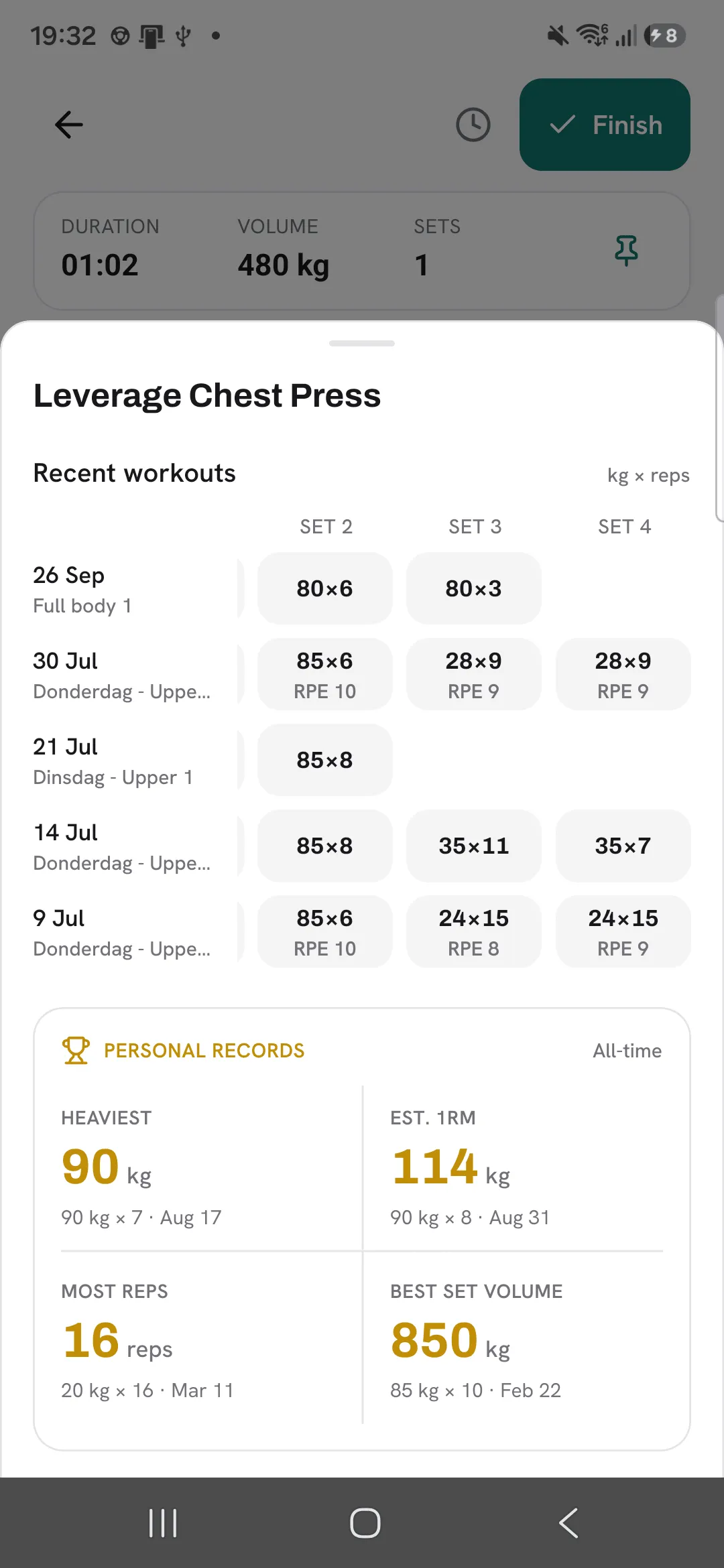
Tap a set’s previous values to open a sheet for that exercise. Recent workouts lists up to your last five workouts with it, set by set, with any rating under the weight and reps. Swipe the sets sideways to see more. The exercise’s all-time personal records sit below.
Leave and come back
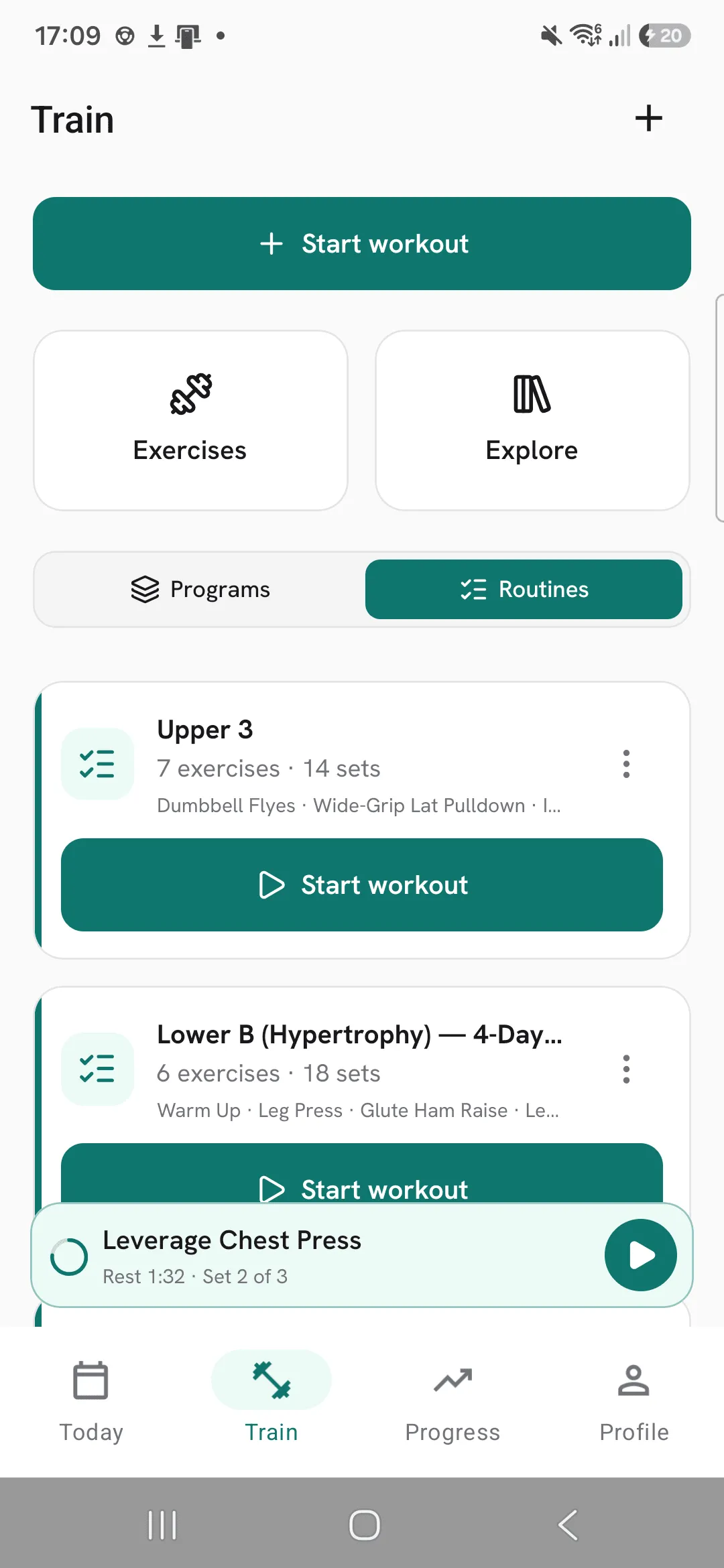
You can switch tabs while a workout runs. A bar above the tab bar shows your next set, and tapping it takes you back. If you start another workout while one is running, Overlood asks whether to resume it or start new. Starting new deletes the workout you’re logging for good.
Finish
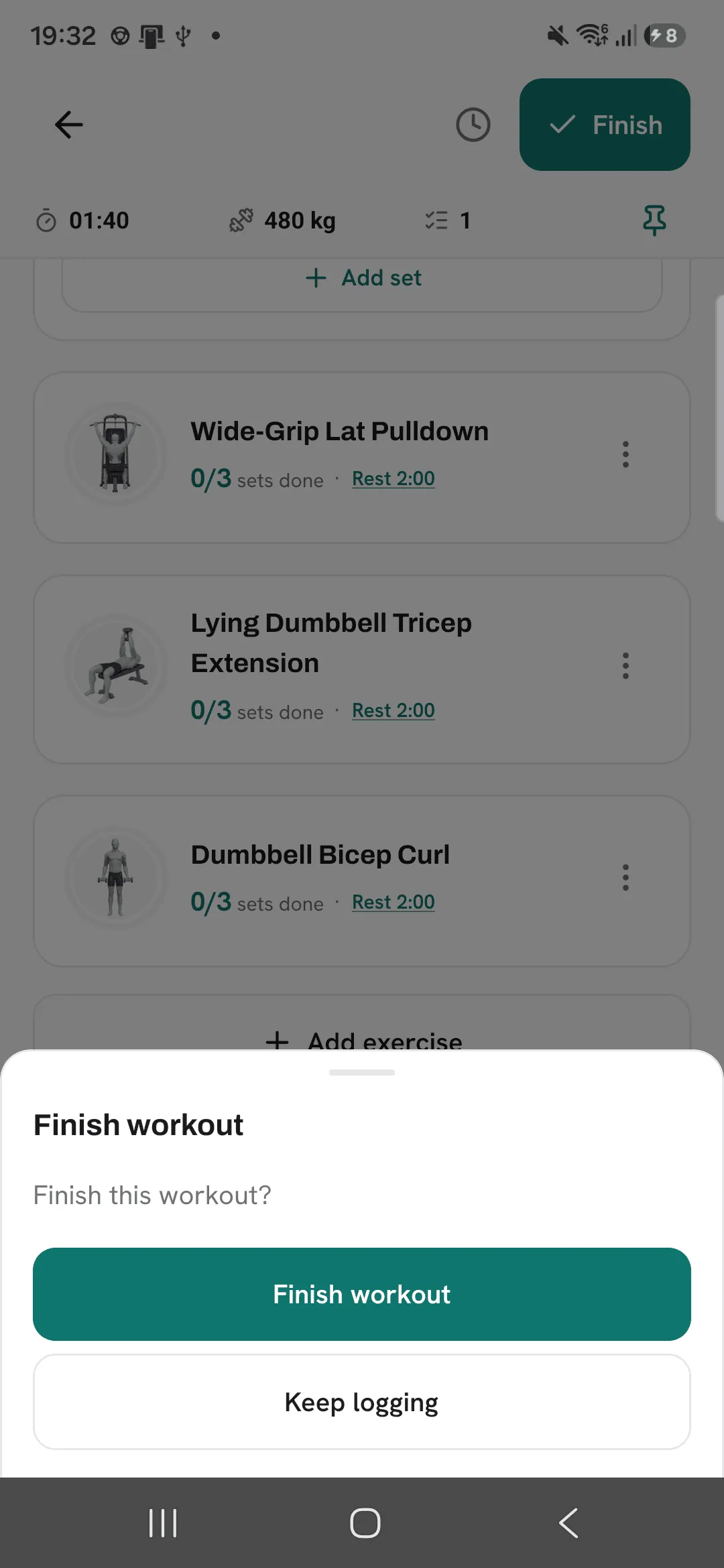
Tap Finish when you’re done. You need at least one ticked set, and if none are ticked yet, Finish tells you so. Sets you didn’t tick are left out. If you typed numbers into a set but didn’t tick it, Overlood tells you how many before you confirm.
Once it’s saved, the finish screen shows your workout’s name. Tap it to change it.
If you started from a routine and changed which exercises it holds, Overlood asks whether to update the routine for next time.
Change it later
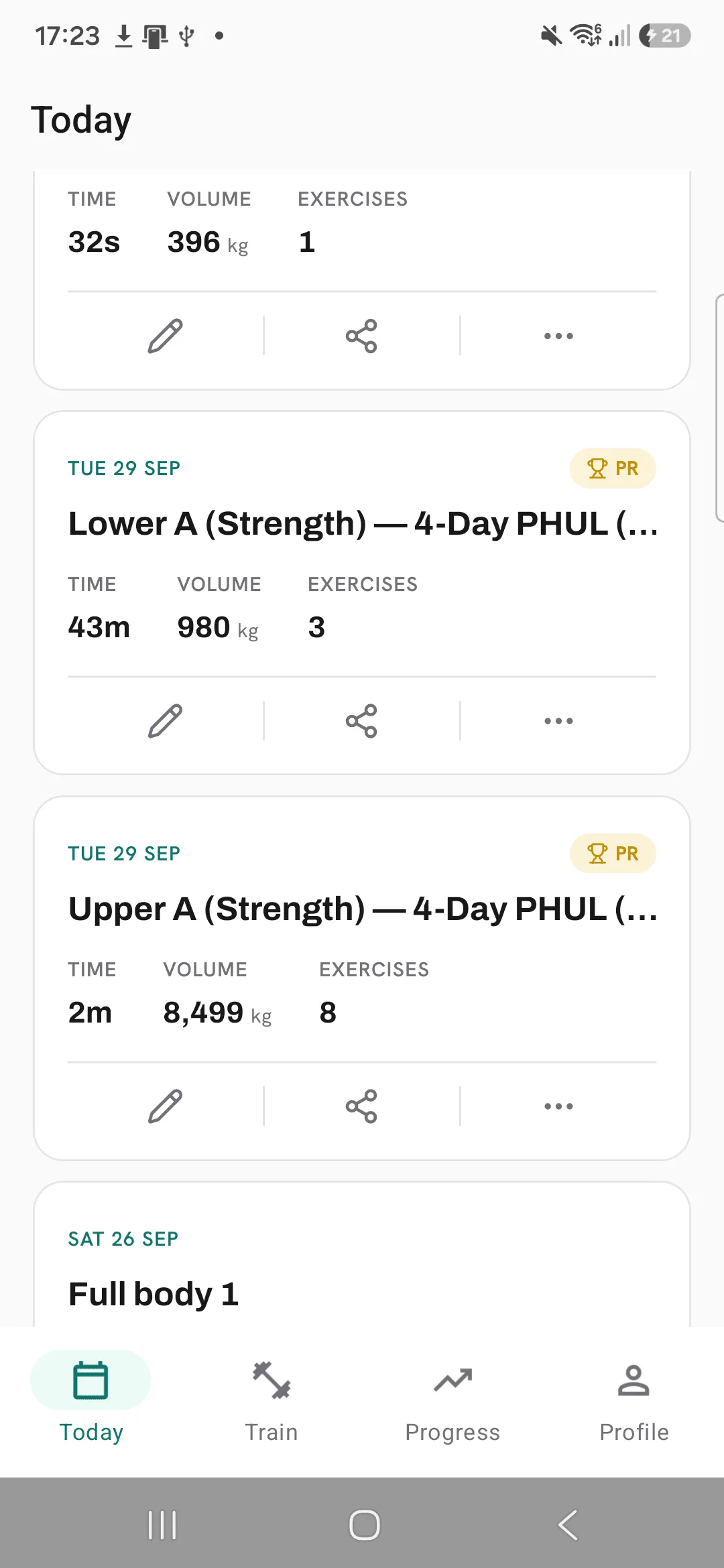
Your finished workouts show under Recent workouts on Today. Tap the pencil on a workout’s card to edit it, or open its menu to save it as a routine or delete it.
Tips
- Mark warm-ups as warm-up sets. They stay out of your records unless you choose to count them.
- Leave a set unticked if you skipped it. Only ticked sets are saved when you finish.
- Save the workouts you repeat as routines, and every exercise and set is in place when you start one.
Frequently asked questions
What happens to sets I didn’t tick?
They’re left out when you finish. If you typed numbers into a set but didn’t tick it, Overlood tells you how many before you confirm.
Can I leave the workout screen while I train?
Yes. A bar above the tab bar shows your next set, and tapping it takes you back.
Can I change a workout after I finish it?
Yes. Under Recent workouts on Today, tap the pencil on its card to edit it, or open its menu to save it as a routine or delete it.