
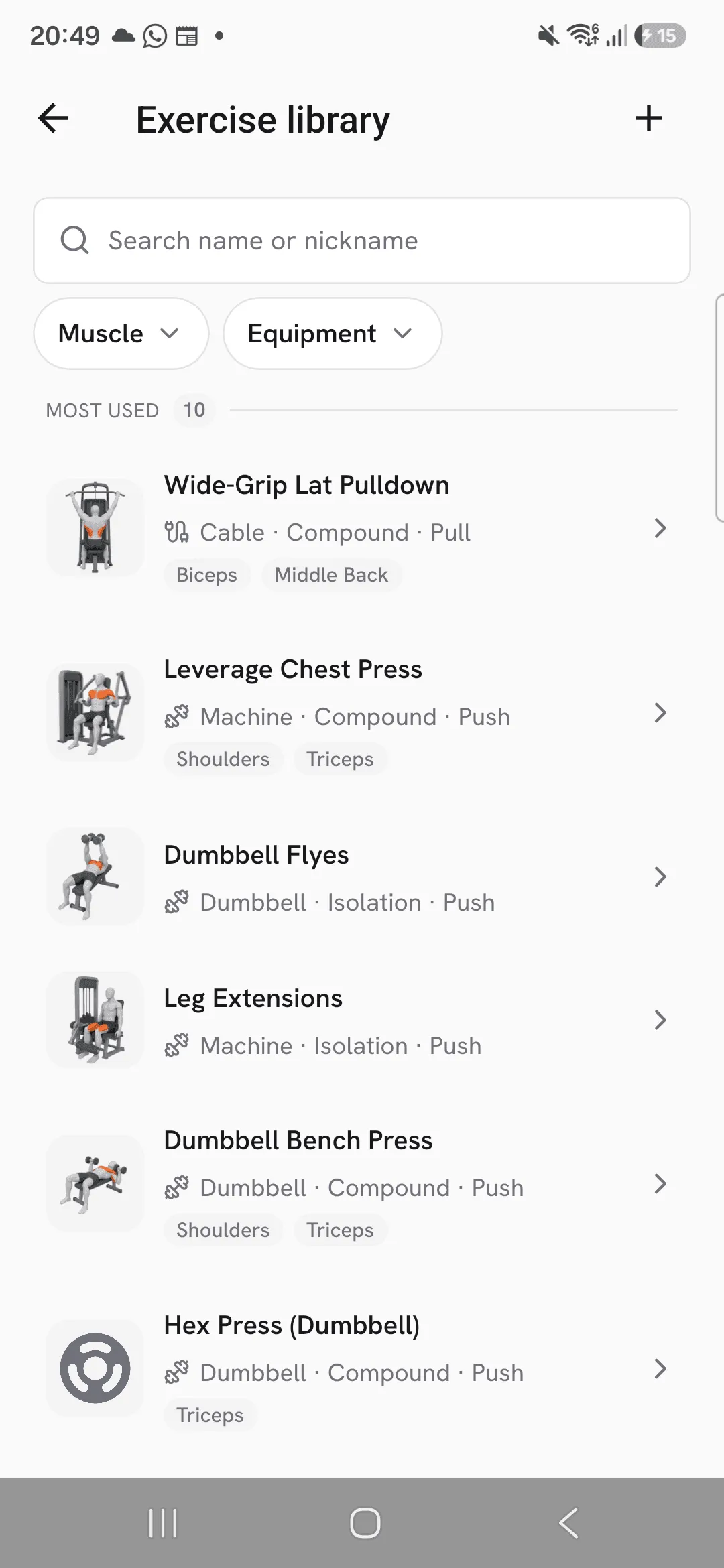
The exercise library in Overlood lists every exercise you can log, with search, a muscle strip, filters, your favorites and a page per exercise.
You pick an exercise every time you build a routine or add one to a workout. The library makes that quick, and when your gym has a machine it doesn’t list, you add it yourself and log it like any other.
Browse the library
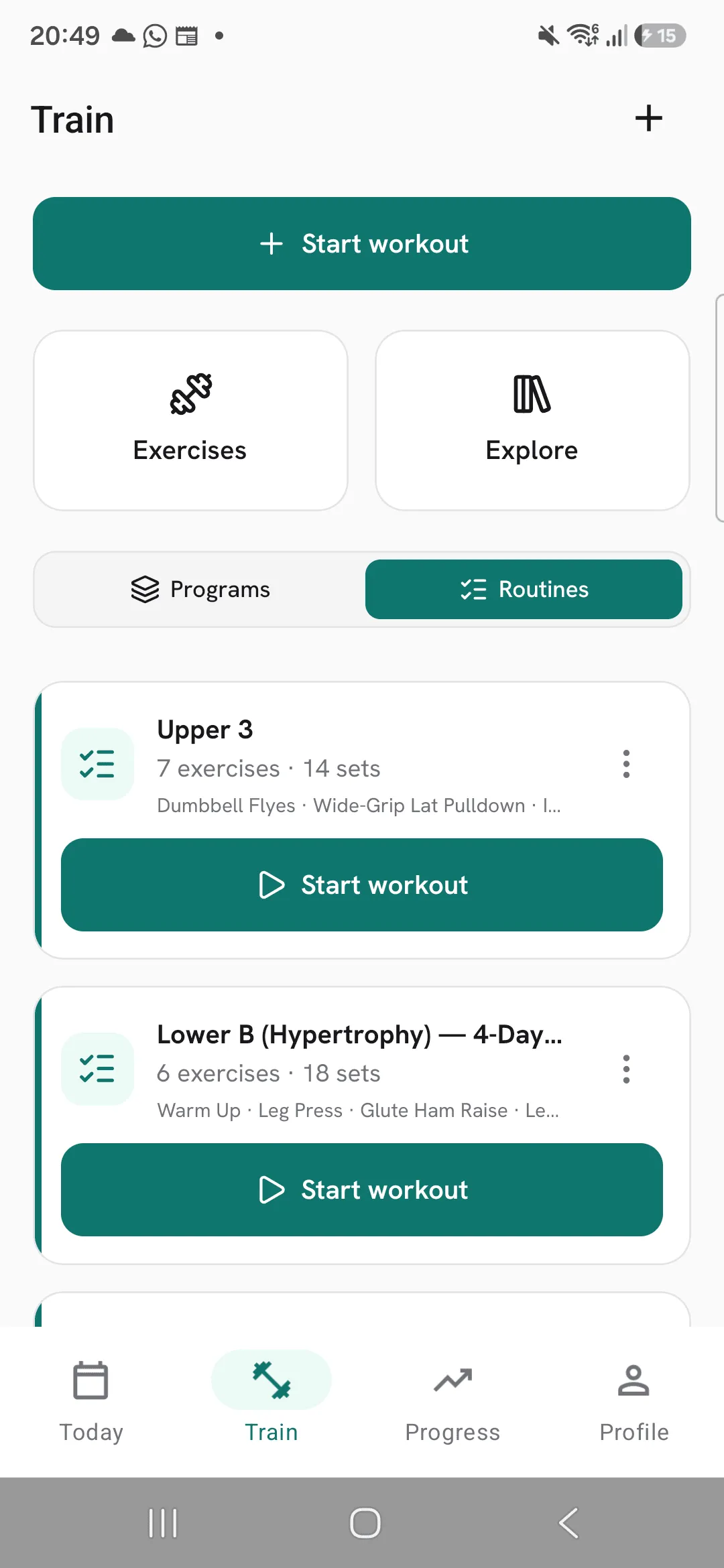
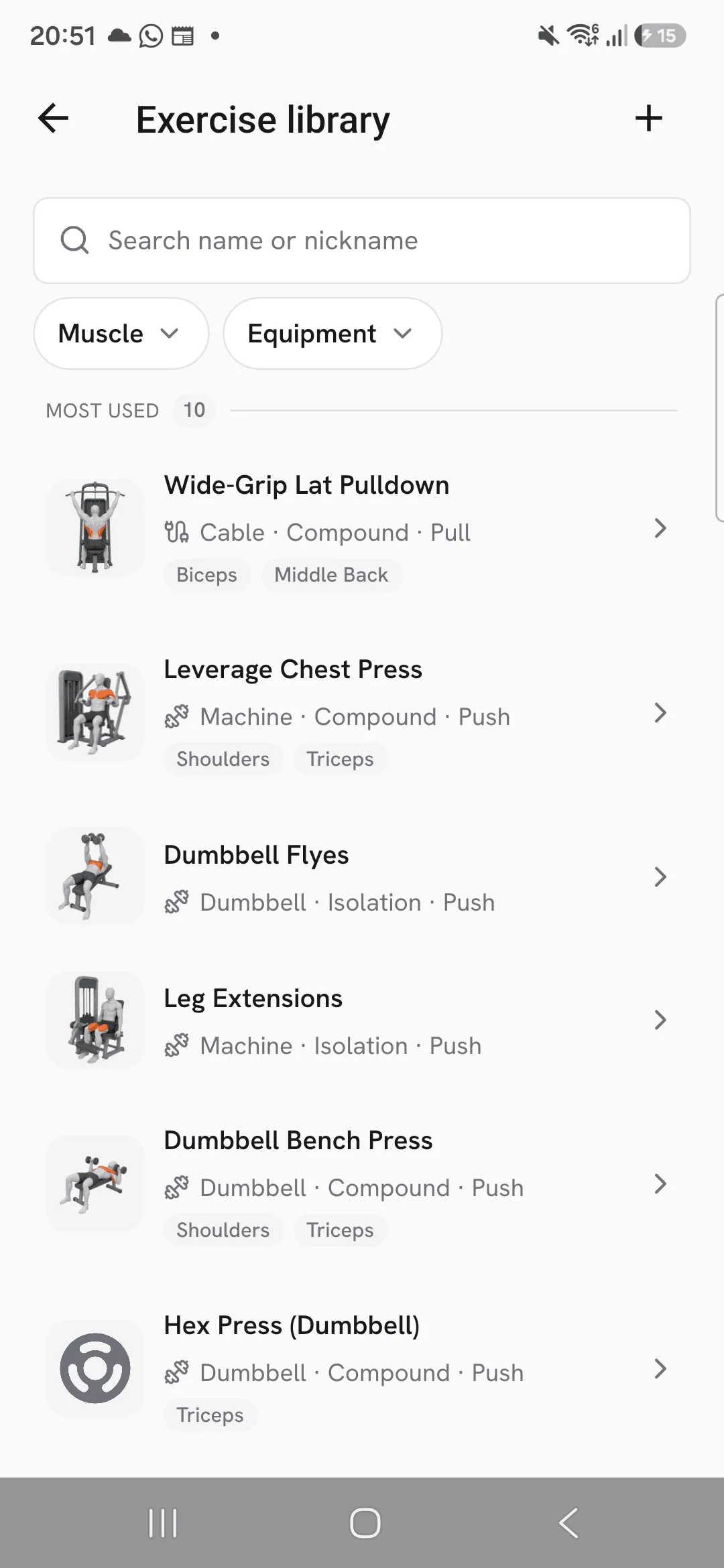
Open Train and tap Exercises. The exercises you use most sit at the top under Most used while you aren’t searching or filtering. Below them, All exercises lists every exercise from A to Z, with the total in its title.
Each row leads with the exercise’s image, then its name and its main muscle. Your own exercises add Custom after the muscle, and show your photo of the machine if you took one.
Search and filter
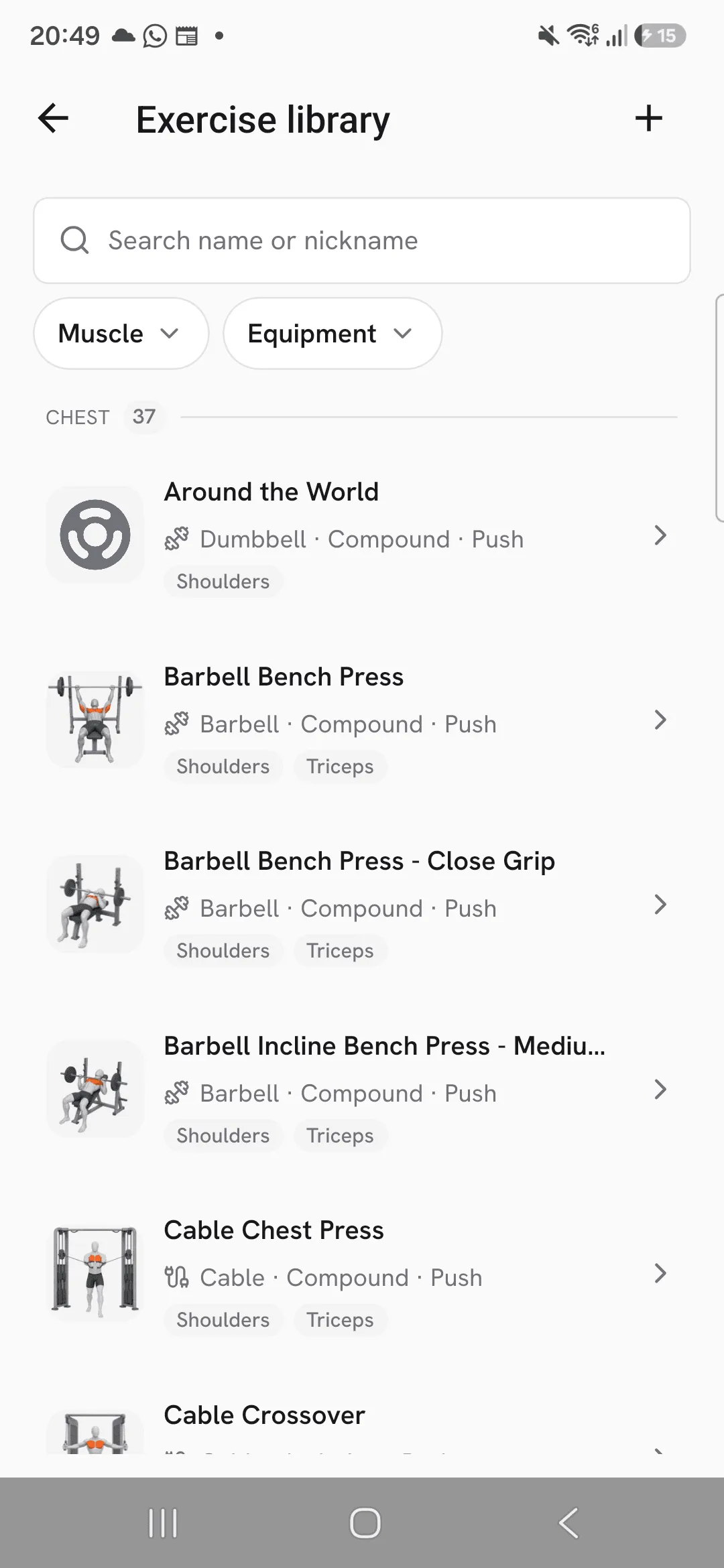
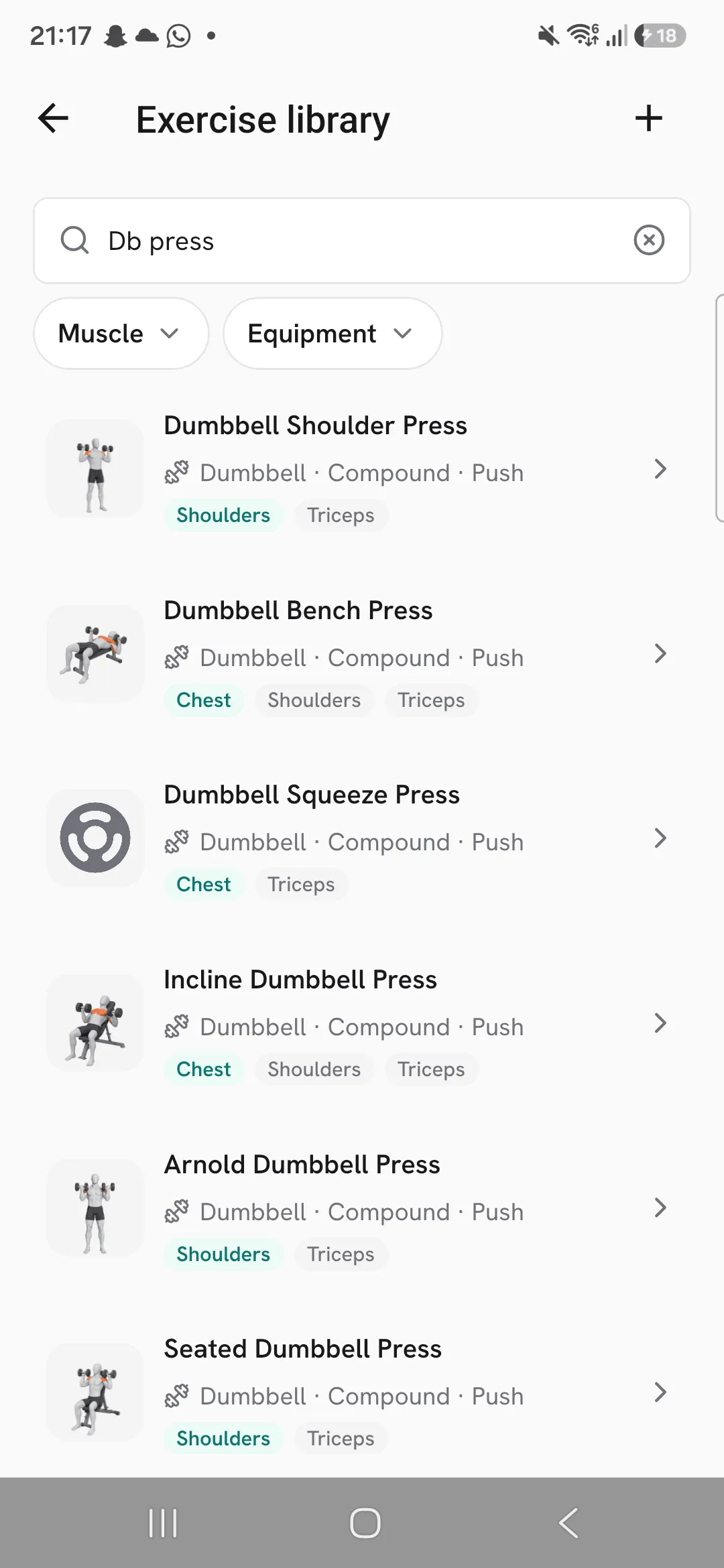
Tap the search icon at the top and type to find an exercise by name or nickname. On iPhone the search opens in place; on Android it takes the place of the title. Search also matches equipment and main muscle names, and ignores accents and capitals.
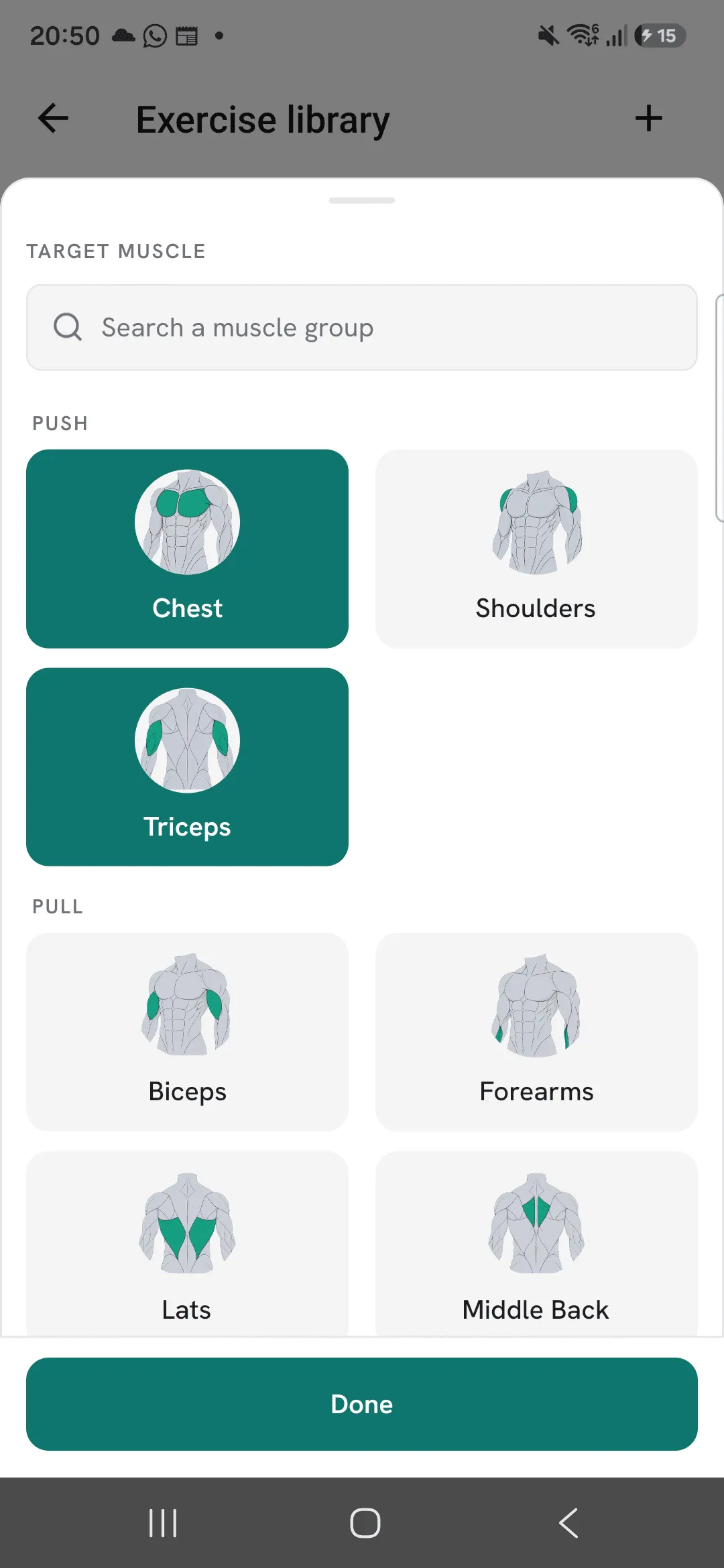
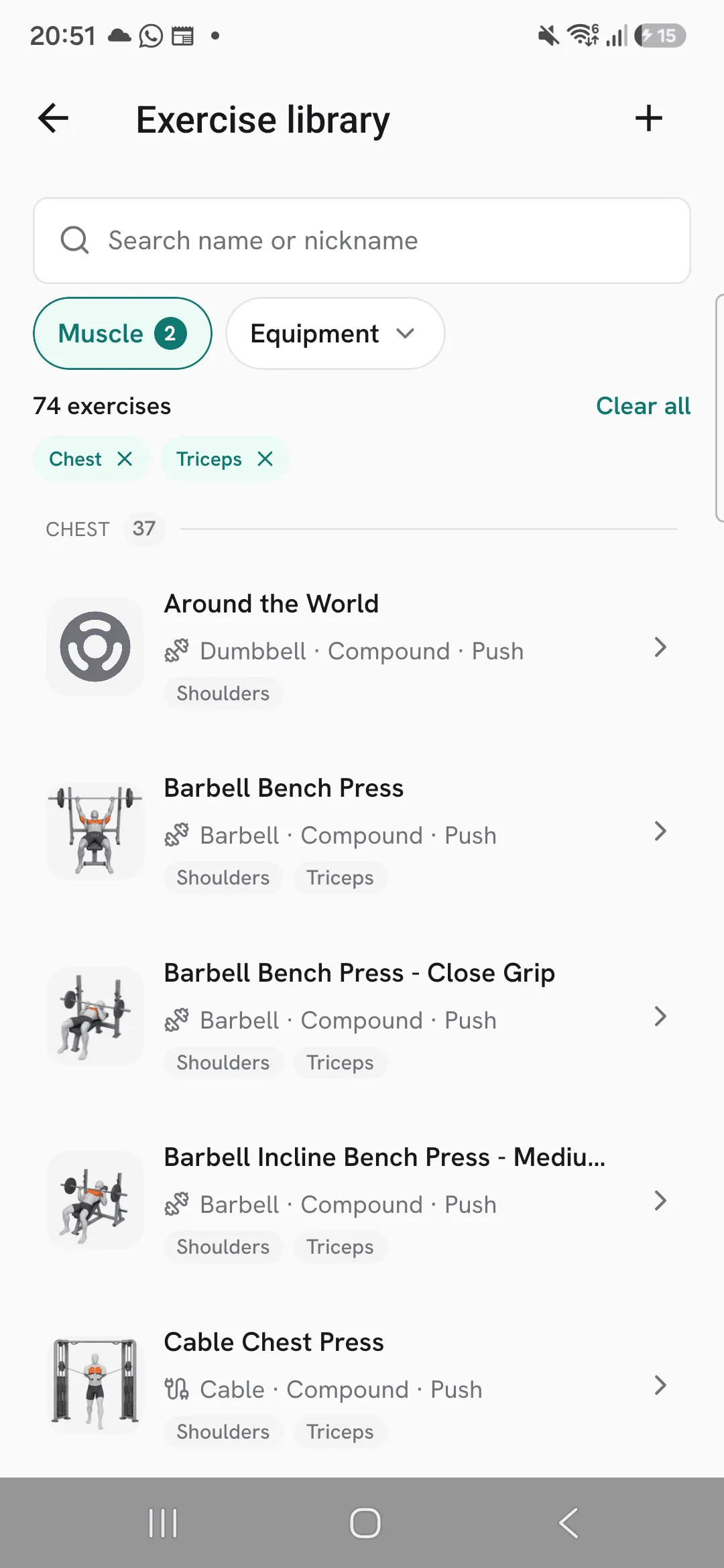
A strip of muscles above the list filters it with one tap. Tap a second muscle to see both, and tap a muscle again to drop it.
The filter icon at the top opens Filter: Equipment, Body part and My exercises, which holds Favorites and Custom. Tap as many as you like, and the list behind follows as you tap. Clear all removes them, and Show closes the sheet on the matching exercises. While a filter is on, the filter icon is filled in.
List or grid
The switch at the right of the first section title turns the list into a grid of large cards, two to a row, with a big image of each exercise. The library and the exercise picker remember which one you chose.
Favorites
Keep the exercises you do most one tap away. In grid view, tap the bookmark on a card. In either view, press and hold an exercise and tap Add to favorites. A favorite shows a filled bookmark in the list, and Remove from favorites in the same place takes it off again.
To see only your favorites, tap Favorites at the start of the muscle strip, or pick it under My exercises in Filter.
Press and hold works in the exercise picker too, so you can favorite an exercise while you add it to a workout or routine.
Open an exercise
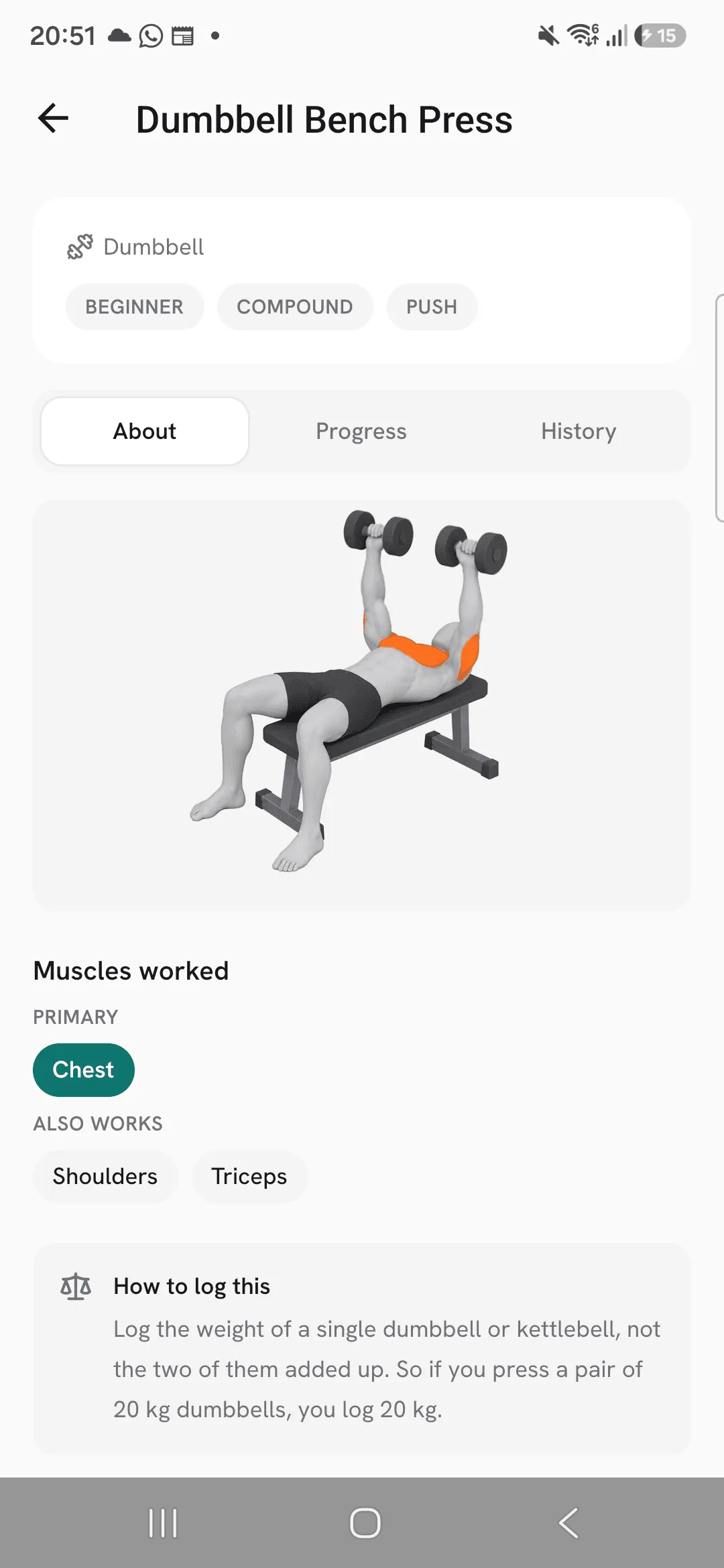
Tap an exercise to open its page, with three tabs:
- About: a demo video or image where there is one, the muscles it works, a note on which weight to log for dumbbell, barbell and machine exercises, and step-by-step instructions where the exercise has them.
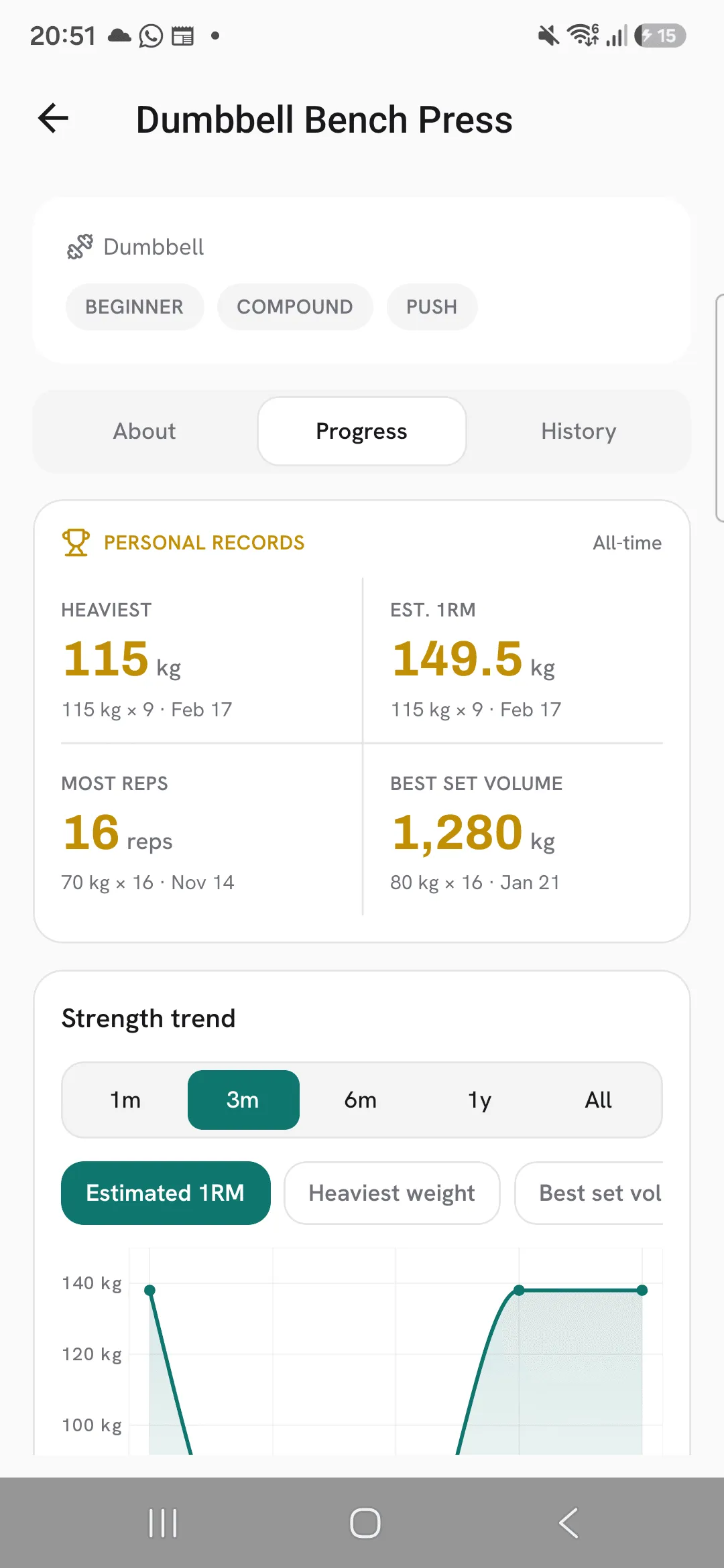
- Progress: your all-time records and a strength chart.
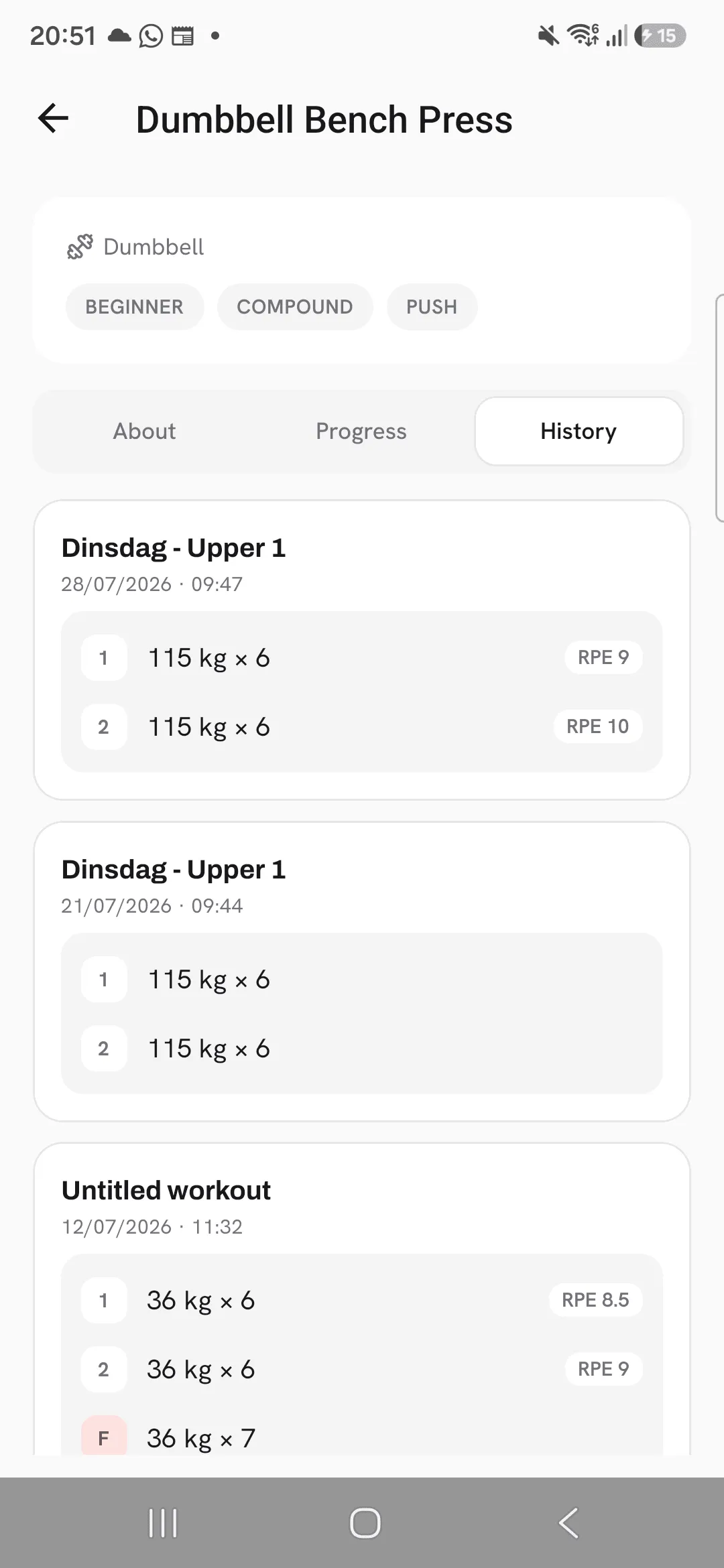
- History: every workout you did it in, newest first, with the sets you logged.
Add a custom exercise
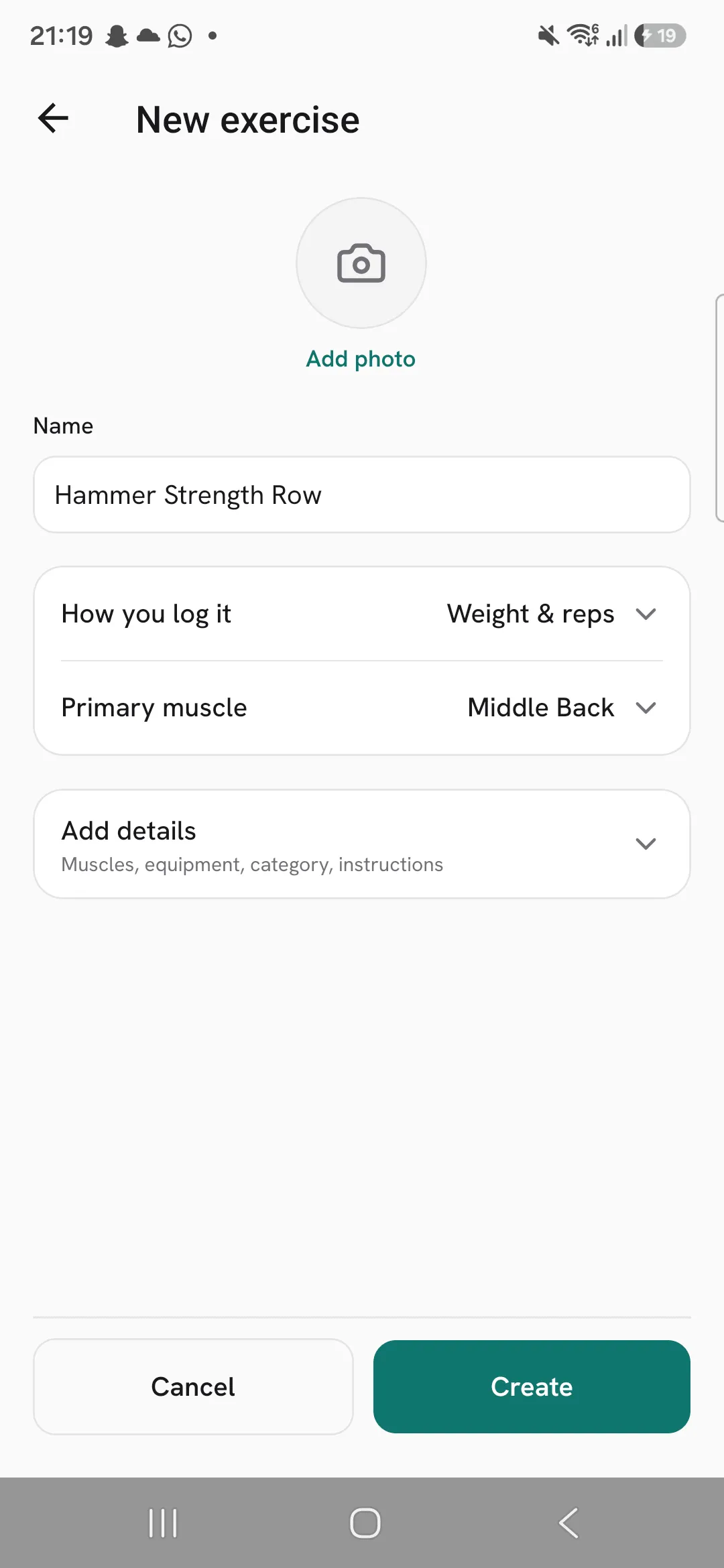
- Tap + at the top of the library, or + on the Train tab and then New exercise. Or, while picking an exercise for a workout or routine, tap + at the top of the picker.
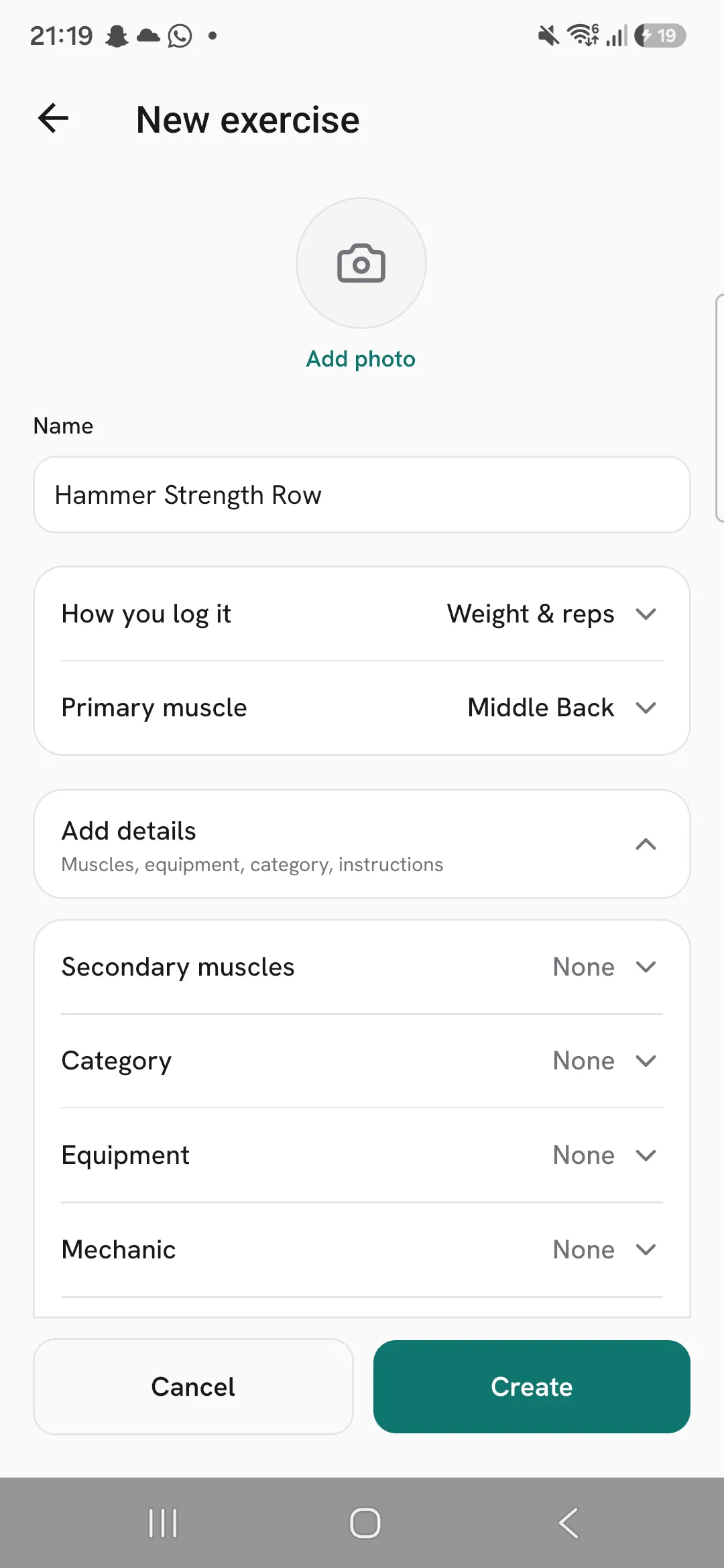
- Give it a name.
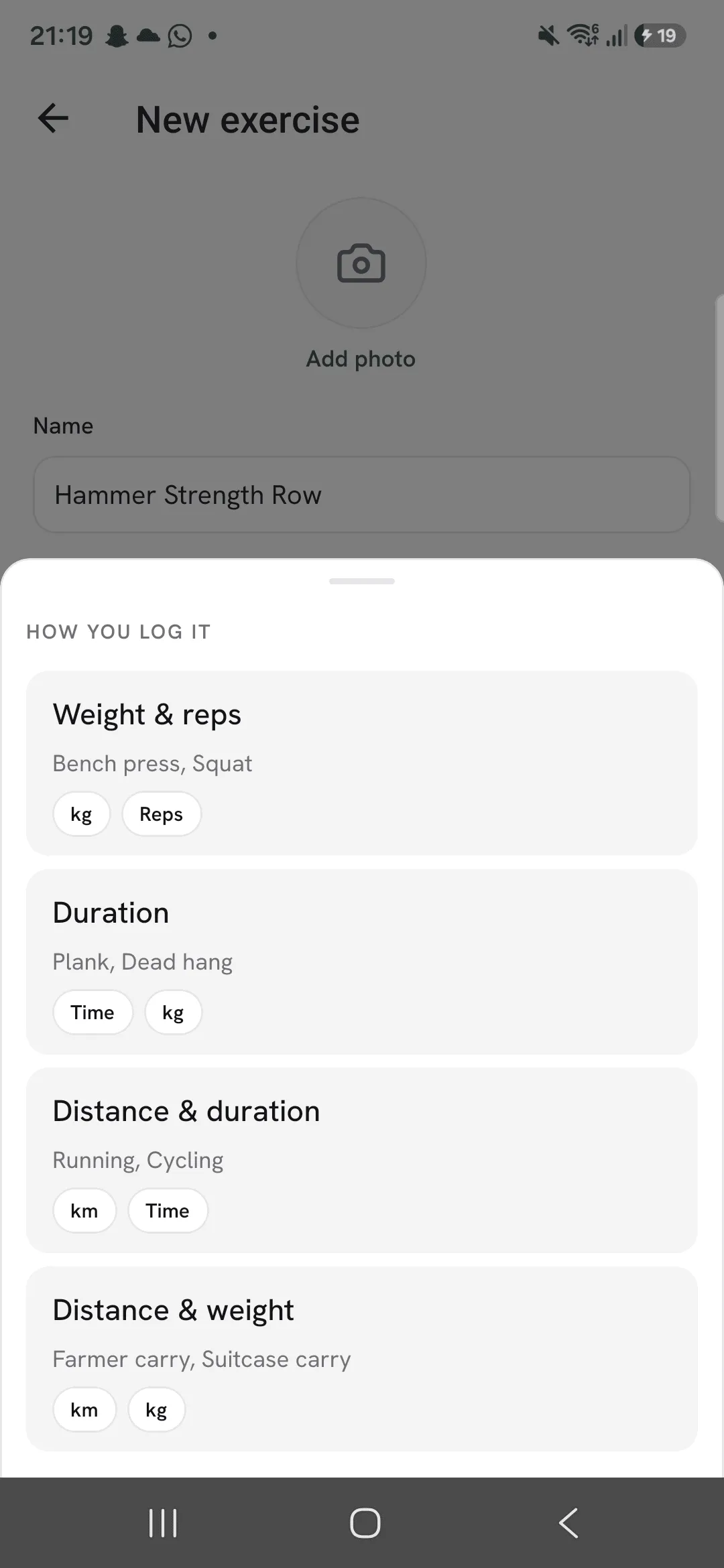
- Under How you log it, pick Weight & reps, Duration, Distance & duration or Distance & weight.
- Pick its Primary muscle.
- Tap Create.
Add details holds the rest, all optional: secondary muscles, category, equipment, mechanic, force, level and instructions, one step per line. At the top of the form you can add a photo, from the camera or your library.
If a search finds nothing, the empty list offers to add what you typed as a new exercise, with the name filled in.
Edit, duplicate or delete
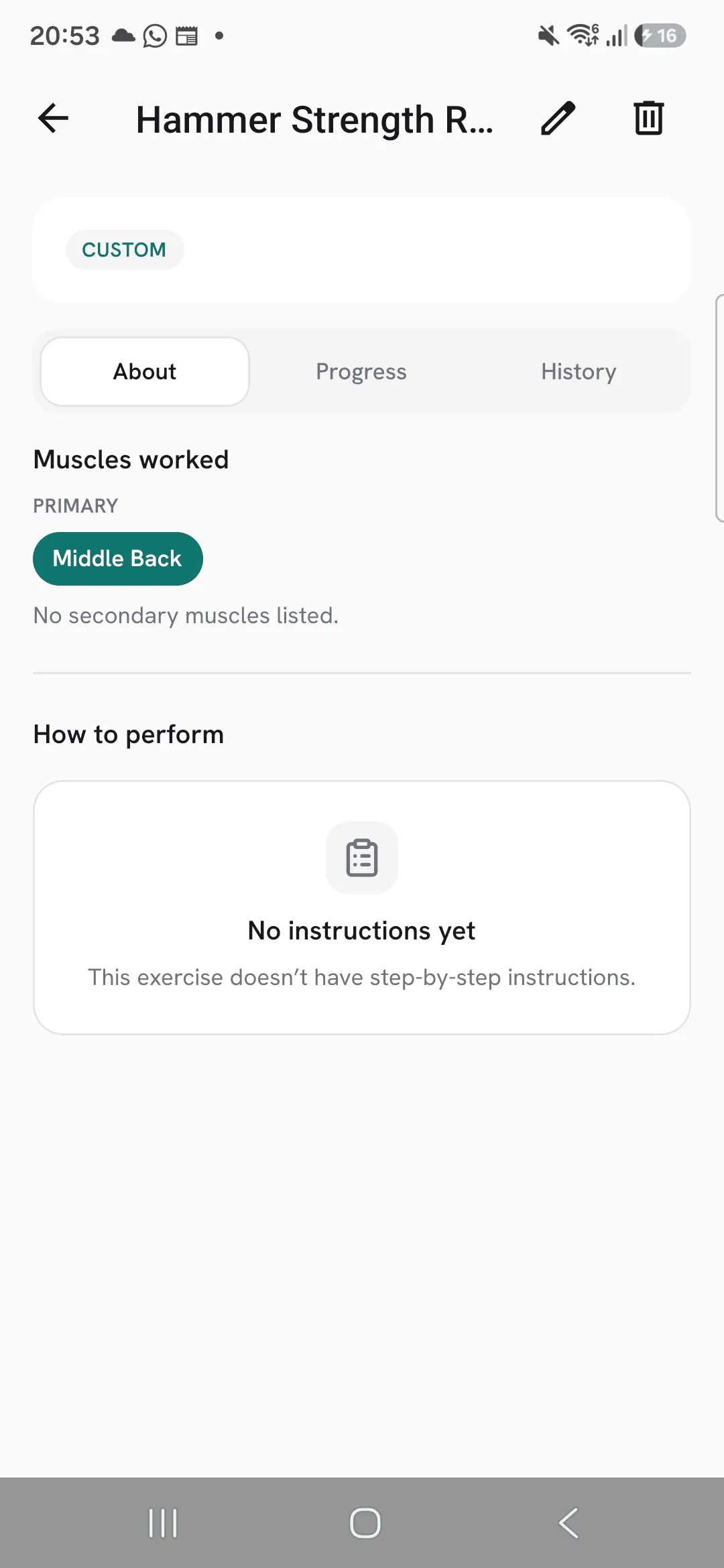
A custom exercise’s page has an edit button (the pencil) at the top, and a menu beside it with Duplicate and Delete. Deleting it removes it from your library, and the workouts you logged with it keep their sets.
Duplicate opens the New exercise form with the exercise’s name (with (Copy) added), how you log it and its primary muscle. Add the details you want, then tap Create. Nothing is saved until you do.
Exercises that come with Overlood have Duplicate at the top of their page too. It turns one into your own custom exercise that you can edit, without its demo video or image.
You can also press and hold any exercise in the library and tap Duplicate. Once you tap Create, the copy’s page opens. In the exercise picker, the copy comes back to the picker the same way a new custom exercise does: ticked when you’re adding exercises, picked when you’re replacing one.
Tips
- Search finds nicknames and shorthand too: db, bb, kb and ez match dumbbell, barbell, kettlebell and EZ curl bar.
- Can’t find a machine your gym has? Add it as a custom exercise straight from the picker during a workout, and it comes back ticked, ready to add.
- Take a photo of the machine when you add it, so you recognise it in the list next time.
Frequently asked questions
Can I edit a built-in exercise?
Not the exercise itself. Tap Duplicate at the top of its page to make your own copy, which you can edit. Your copy starts without the demo video or image.
What happens to my workouts if I delete a custom exercise?
They keep their sets. The exercise leaves your library, and your history still shows what you logged with it.
Can I change how a custom exercise is logged later?
No. How you log it is fixed once the exercise is created. Create a new one if you need a different type.
Can other people see my custom exercises?
No. Your custom exercises only show up in your own library.