
A routine in Overlood is a saved list of exercises and sets you start as a workout. A program puts routines in order and tells you which one is next.
Create a routine
There are three ways to make one:
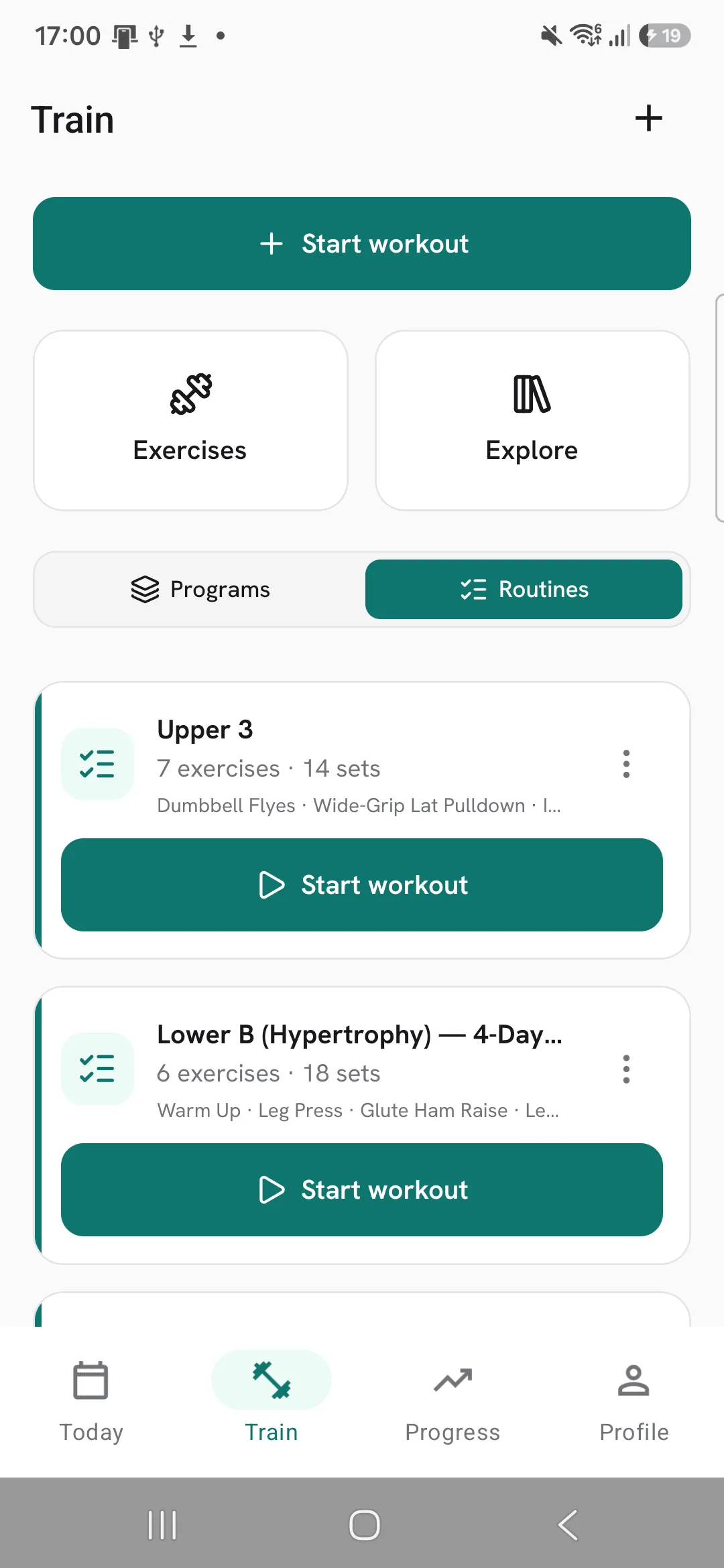
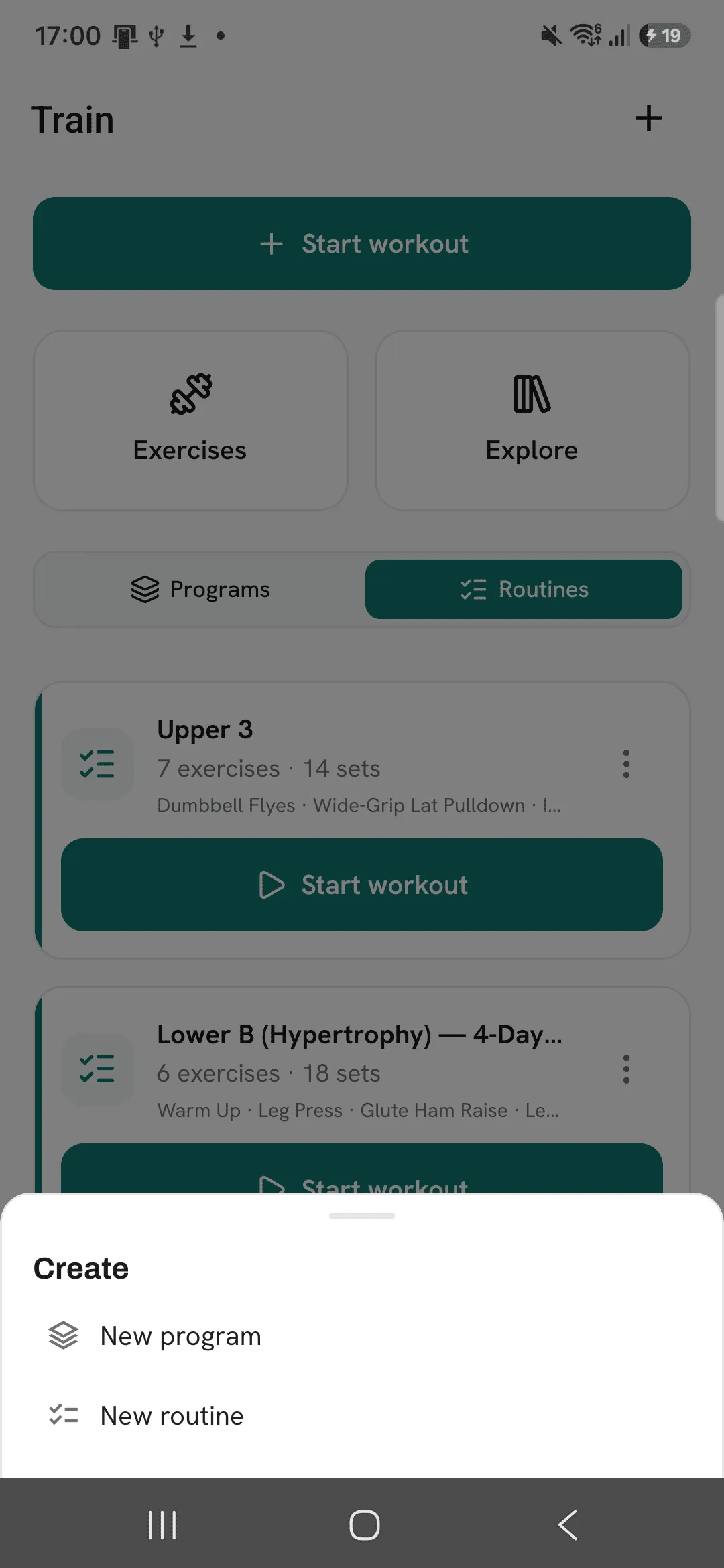
- Open Train, tap + at the top right, then New routine. Name it, then add exercises and sets.
- Open a finished workout’s menu and tap Save as routine.
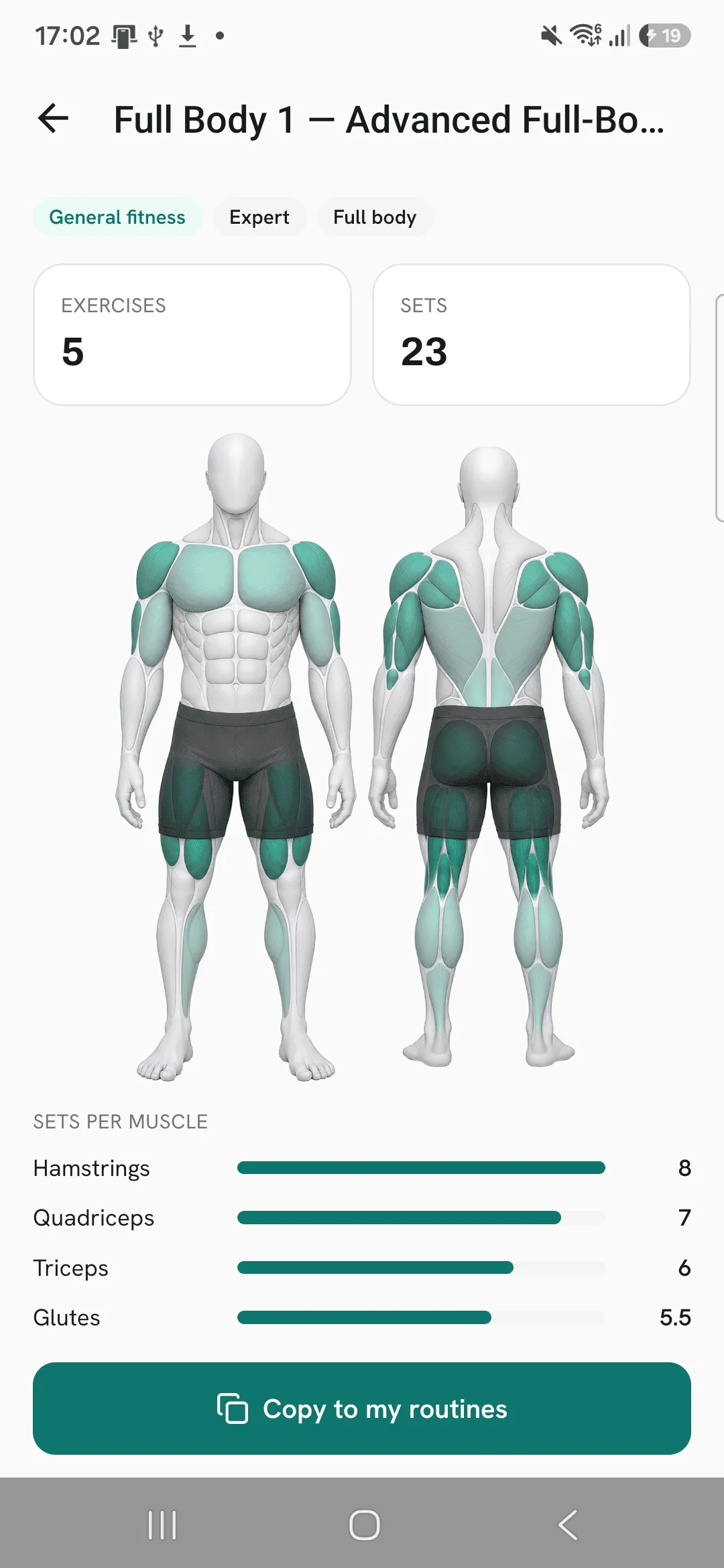
- Open Explore on Train and copy a ready-made routine from the Overlood library with Copy to my routines.
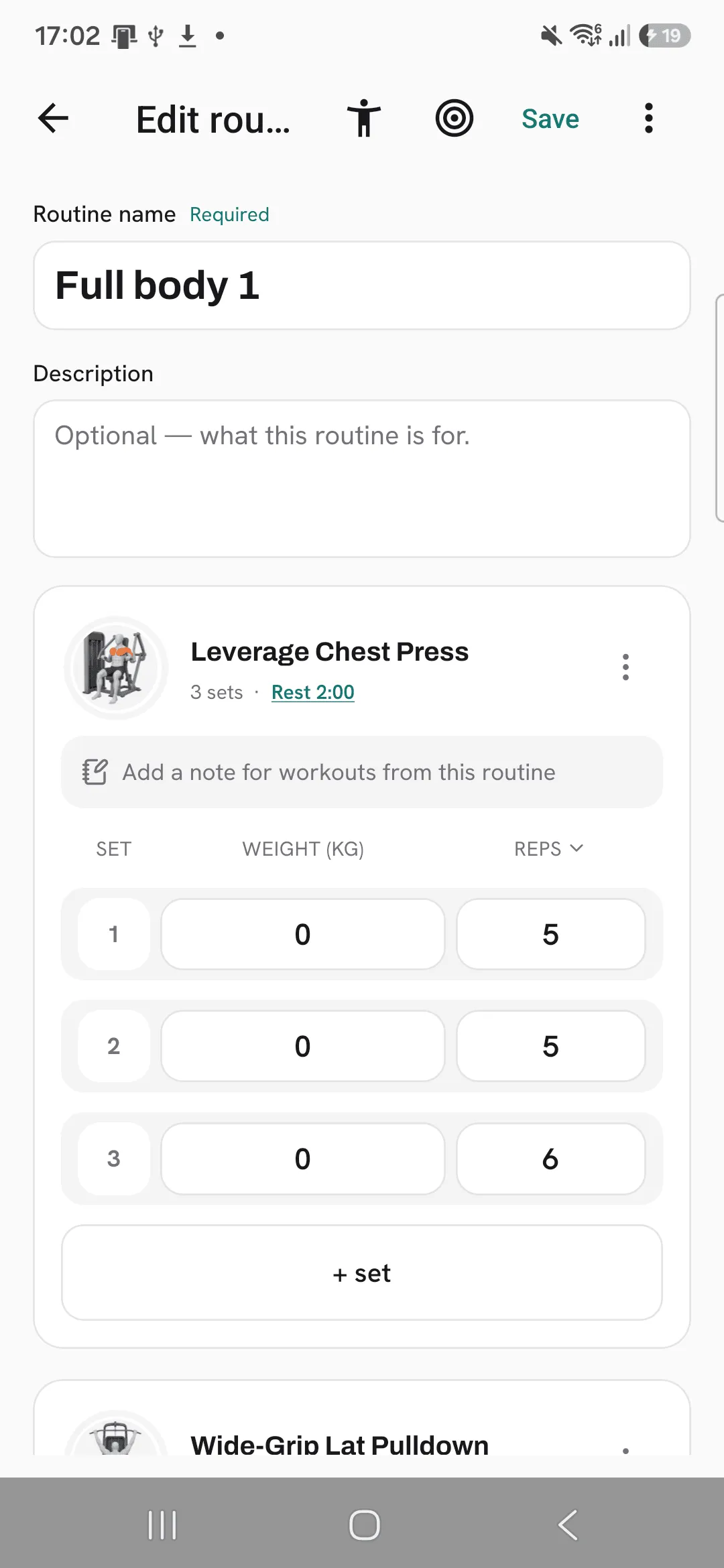
For each exercise you can set reps, weight, a rest and a note.
A routine’s menu lets you duplicate or delete it. Deleting a routine leaves the workouts you already did from it alone.
Use a rep range
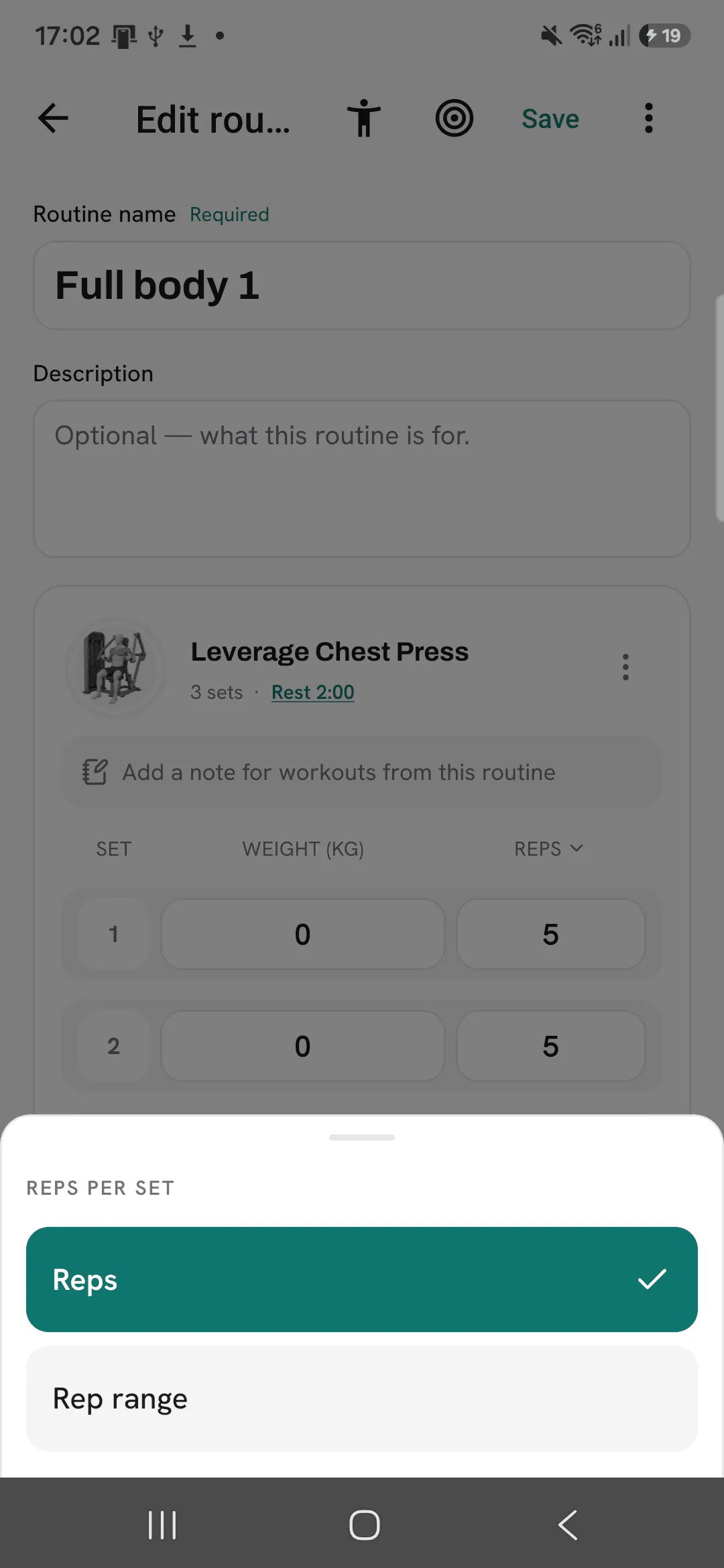
In the routine editor, tap the Reps heading above an exercise’s sets and pick Rep range to give each set a range, such as 8 to 12.
Train from a routine
Tap Start workout and pick the routine. The workout opens with its exercises, sets and rests in place, and each set shows last time’s numbers, or your target if you set one, as a hint to match or beat.
If you change which exercises the workout holds, Overlood asks when you finish whether to update the routine for next time.
Choose what Prev shows
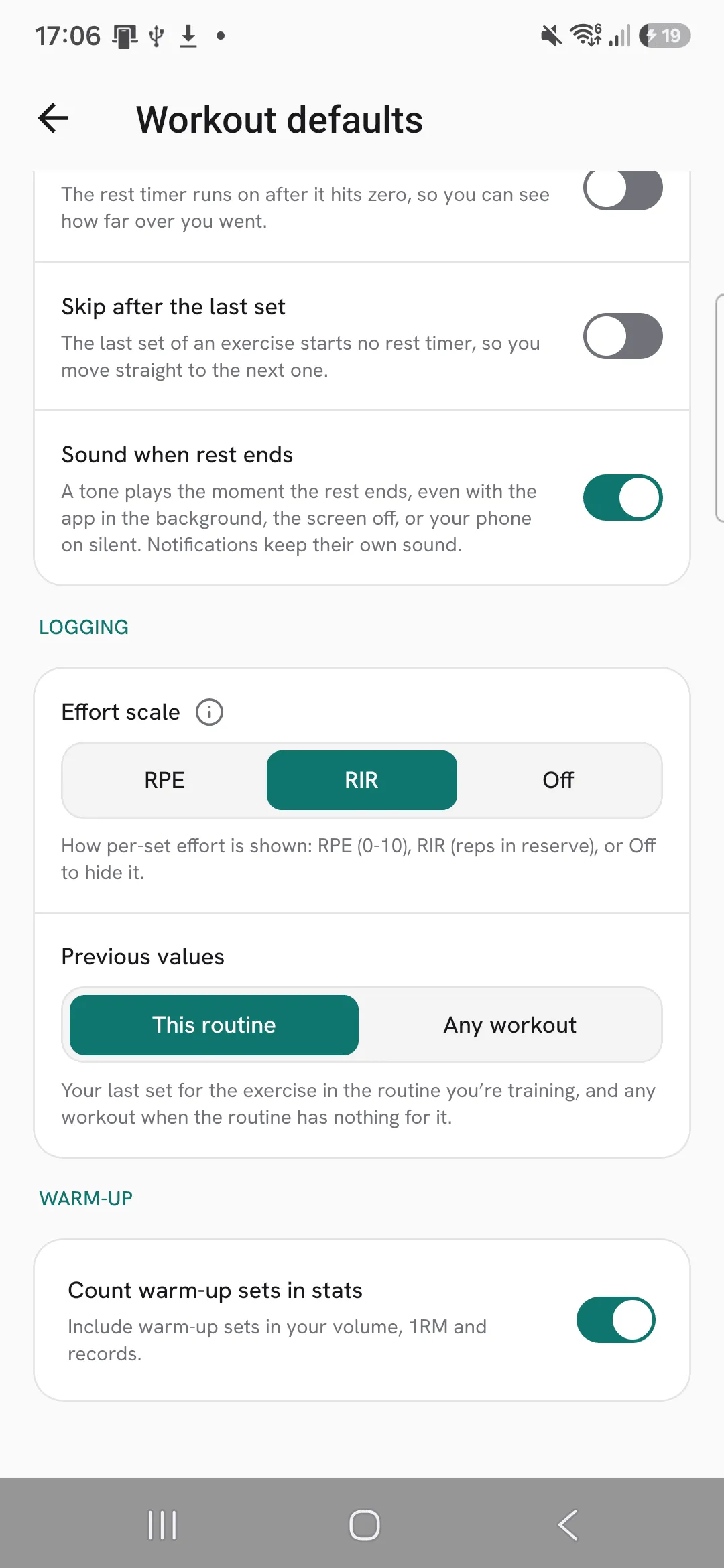
By default, Prev shows what you did last time you trained this routine. Tap the Prev heading during a workout and pick Any workout to see your latest set from any workout instead. The same choice sits under Profile, then Workout defaults, as Previous values.
Group routines into a program
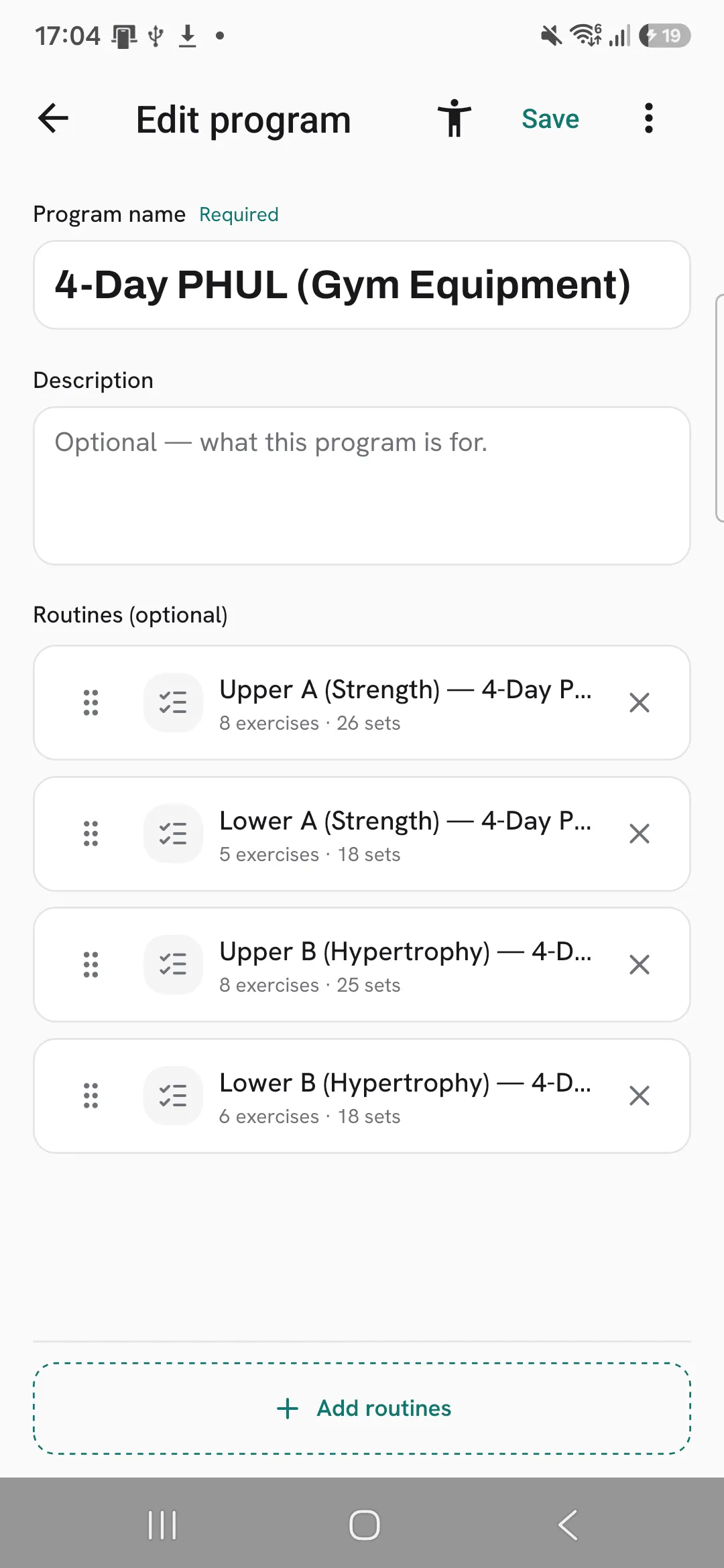
- Open Train, tap + at the top right, then New program.
- Name it, for example Push / Pull / Legs.
- Tap Add routines, pick the ones you want, and drag them into the order you train them.
A routine can sit in more than one program. Deleting a program leaves its routines in your list.
Start the next one
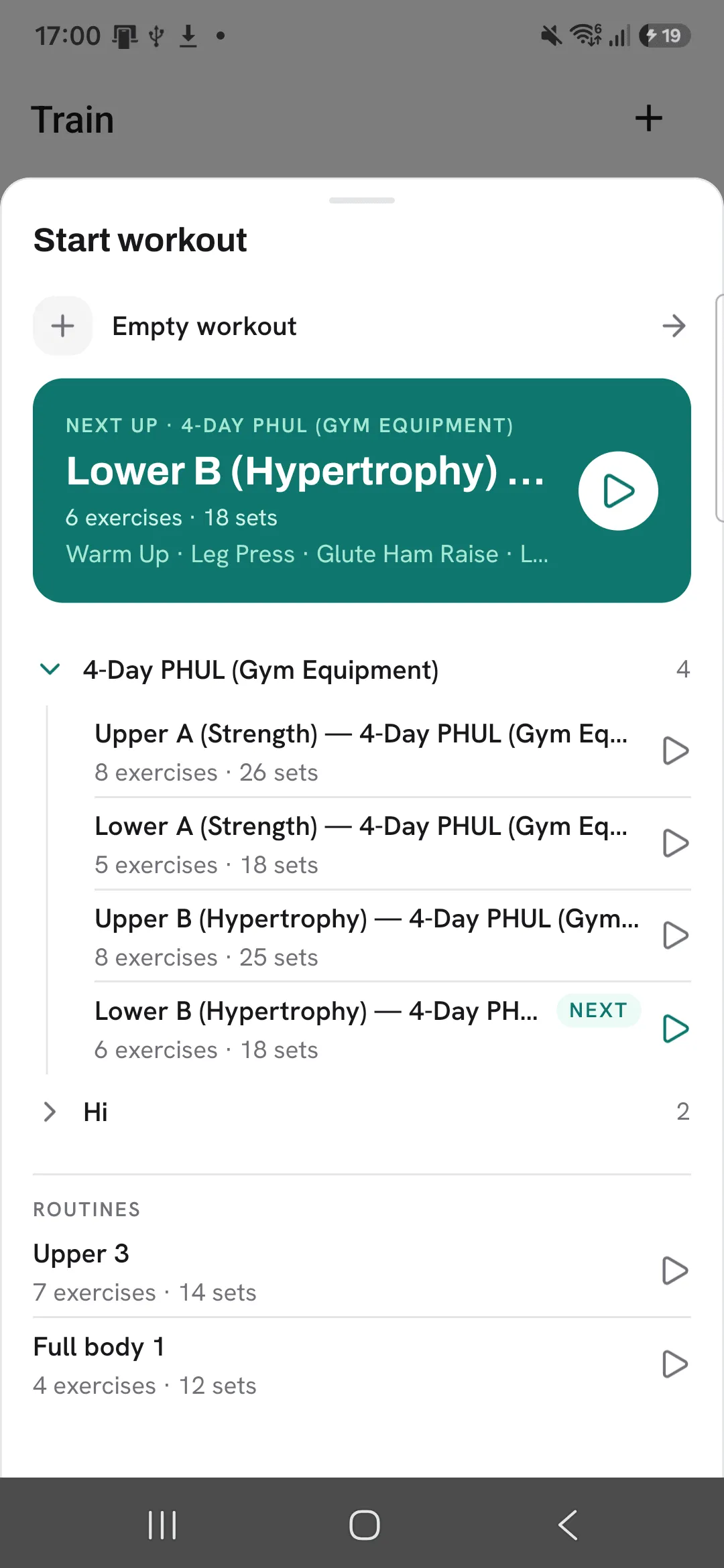
When you tap Start workout, the routine that’s up next in the program you trained most recently sits at the top under Next up, and that program opens so you can see where you are. That’s the routine after the one you last trained in it, going back to the first after the last. Your other programs and routines are listed underneath.
Copy a ready-made program
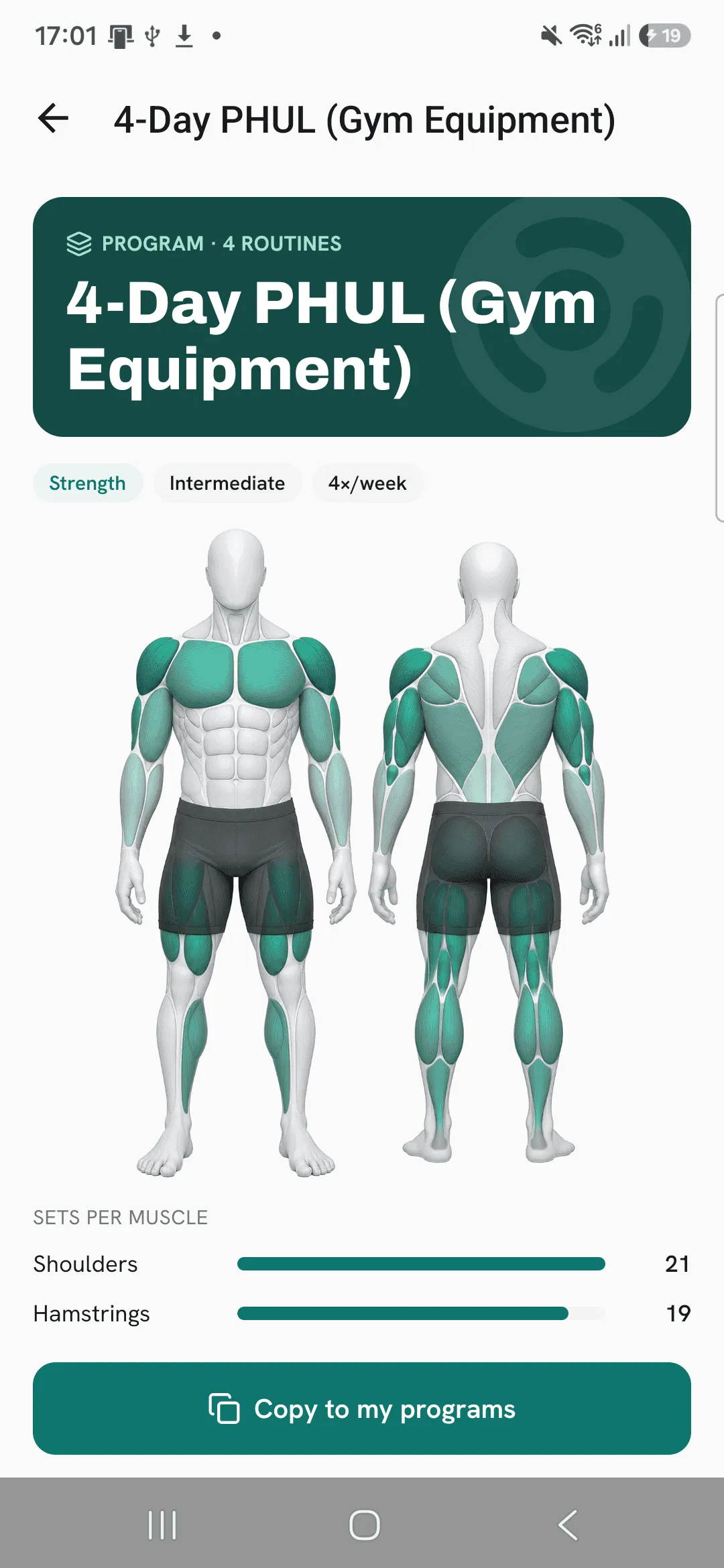
Open Explore on Train, pick a program from the Overlood library and tap Copy to my programs. It lands in your programs with its routines.
Tips
- Your first routine is quickest to make from a workout you already logged: open its menu and tap Save as routine.
- Use a rep range, such as 8 to 12, on lifts where you add weight once you reach the top of it.
- With no routines yet, copy a ready-made program from Explore on Train and change it as you go.
Frequently asked questions
Can a routine sit in more than one program?
Yes. Deleting a program leaves its routines in your list.
How does Overlood pick the next routine?
It’s the routine after the one you last trained in the program, going back to the first after the last.
Does deleting a routine delete my workouts?
No. The workouts you already did from it stay.